 Office Solutions Pro
SharePoint list version history: see changes and restore an item
Check list versioning, inspect who changed an item and when, and restore an earlier state using SharePoint's built-in version history.
When a list item’s status or other value changes unexpectedly, Version history can help you investigate. This tutorial uses an existing Office Support Request list as its example: inspect the history of Request for access (ID 1), then restore the version from before it was marked completed.
This example uses SharePoint Online in a browser, with a modern list and a classic-style settings page. The list already has a custom form, formatting, request numbers, and a scheduled automation. None of them is a prerequisite for opening version history. No new Power Automate flow or Power Apps app is built here.
Before you begin
Use a list containing an item with retained earlier versions. To inspect history, your account needs access to the item and permission to view its versions. To restore, use an account that can edit the item; ask the list owner if the command is unavailable.
Changing versioning requires permission to manage lists. Viewing earlier versions uses a separate permission, View Versions, so if you can’t open Versioning settings in step 1, go to step 3. Microsoft: how versioning works, Microsoft: permission levels.
1. Open versioning settings
Open your SharePoint list, select the Settings gear at the top right, then select List settings.
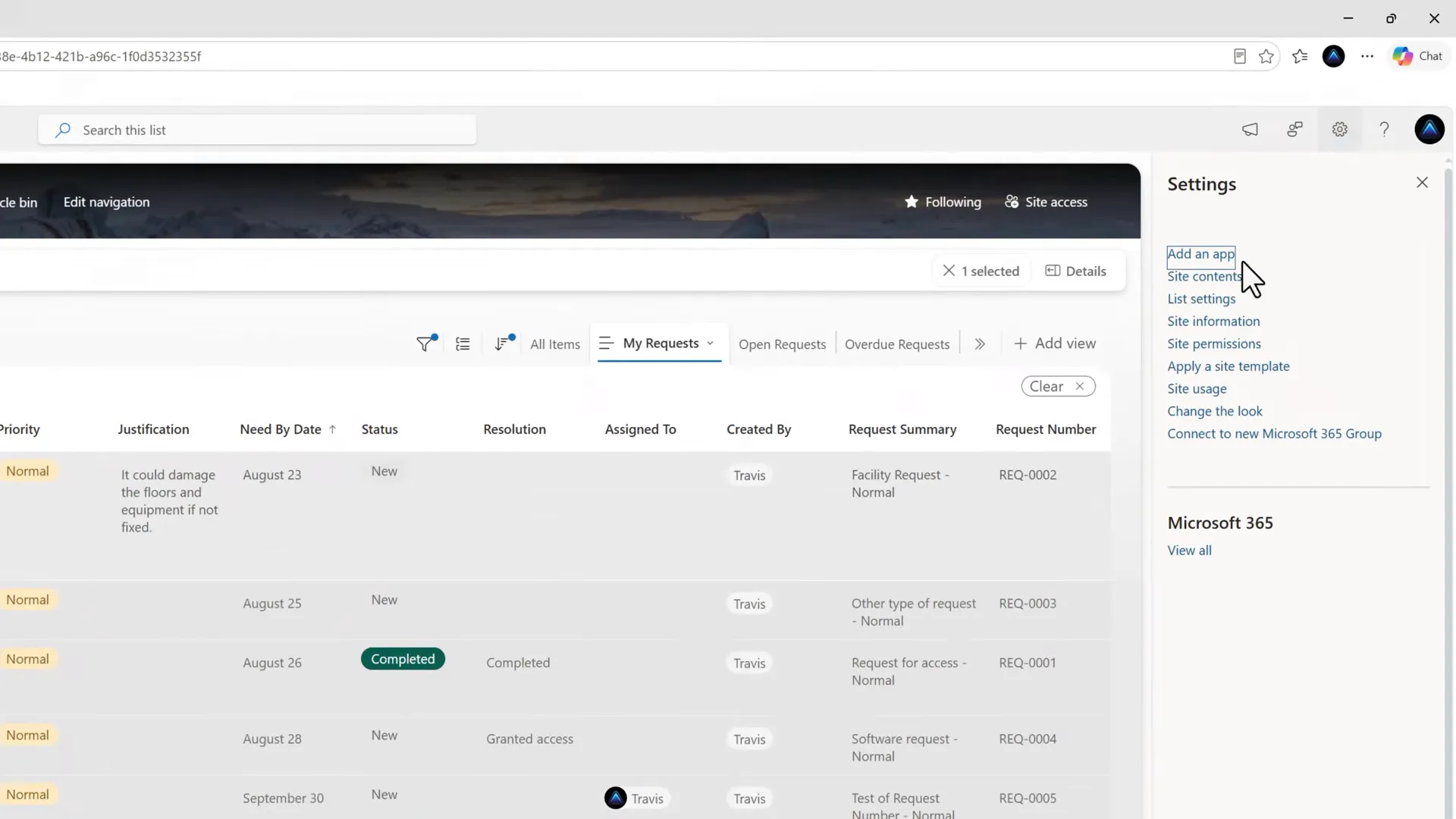
Open the settings for the list you are investigating.
Under General Settings, select Versioning settings.
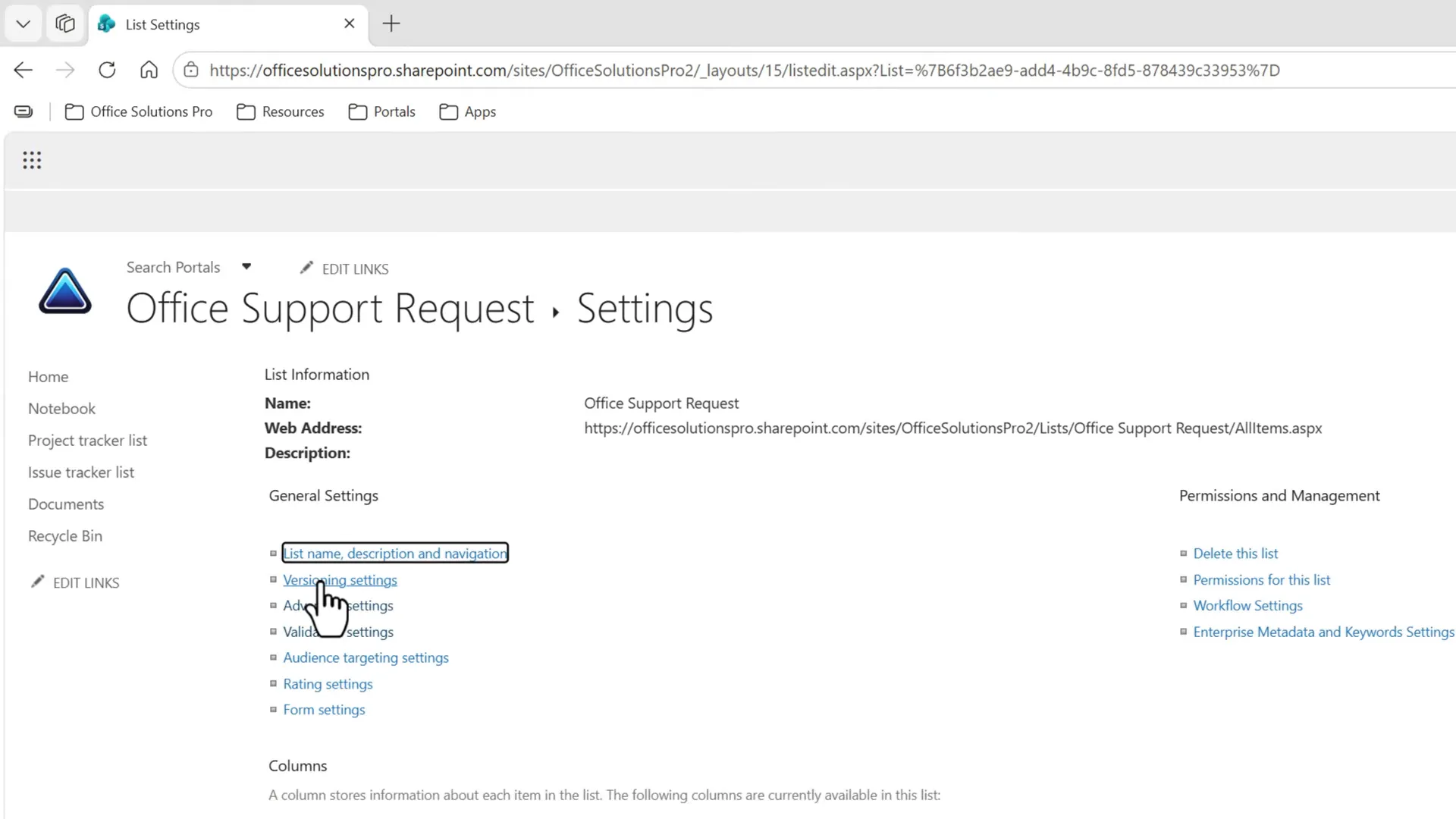
The modern list opens a classic-style settings page.
2. Check versioning and the version limit
In Item Version History, find Create a version each time you edit an item in this list? Select Yes if you need to enable versioning.
Review the number under Keep the following number of versions. The example list is already enabled and configured for 50 versions. This is the example’s configuration, not a recommendation. You can set a limit from 1 to 50,000, so check the value on your own list.
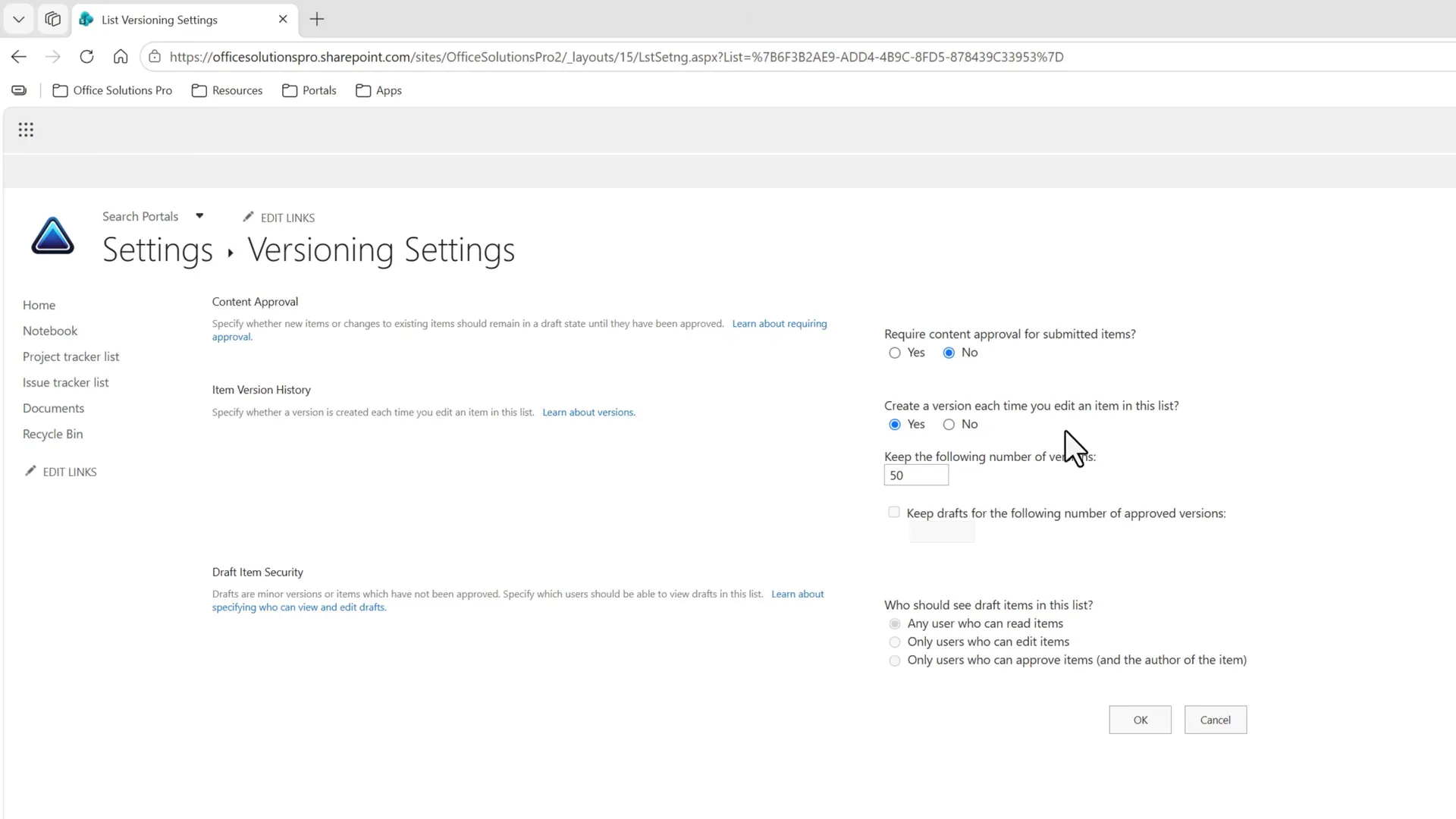
Versioning is already on in the example list.
If you change a setting, select OK to save it. If you are only inspecting existing settings, use Cancel, then return to the list. Microsoft: enable and configure versioning.
Keep content approval separate
You do not need to enable Require content approval for submitted items? just to follow this version-history tutorial. If you select Yes to see the Draft Item Security options and then switch back to No, you’ll see the warning below. Select OK to close the warning, then select Cancel on the settings page to leave the settings as they were.
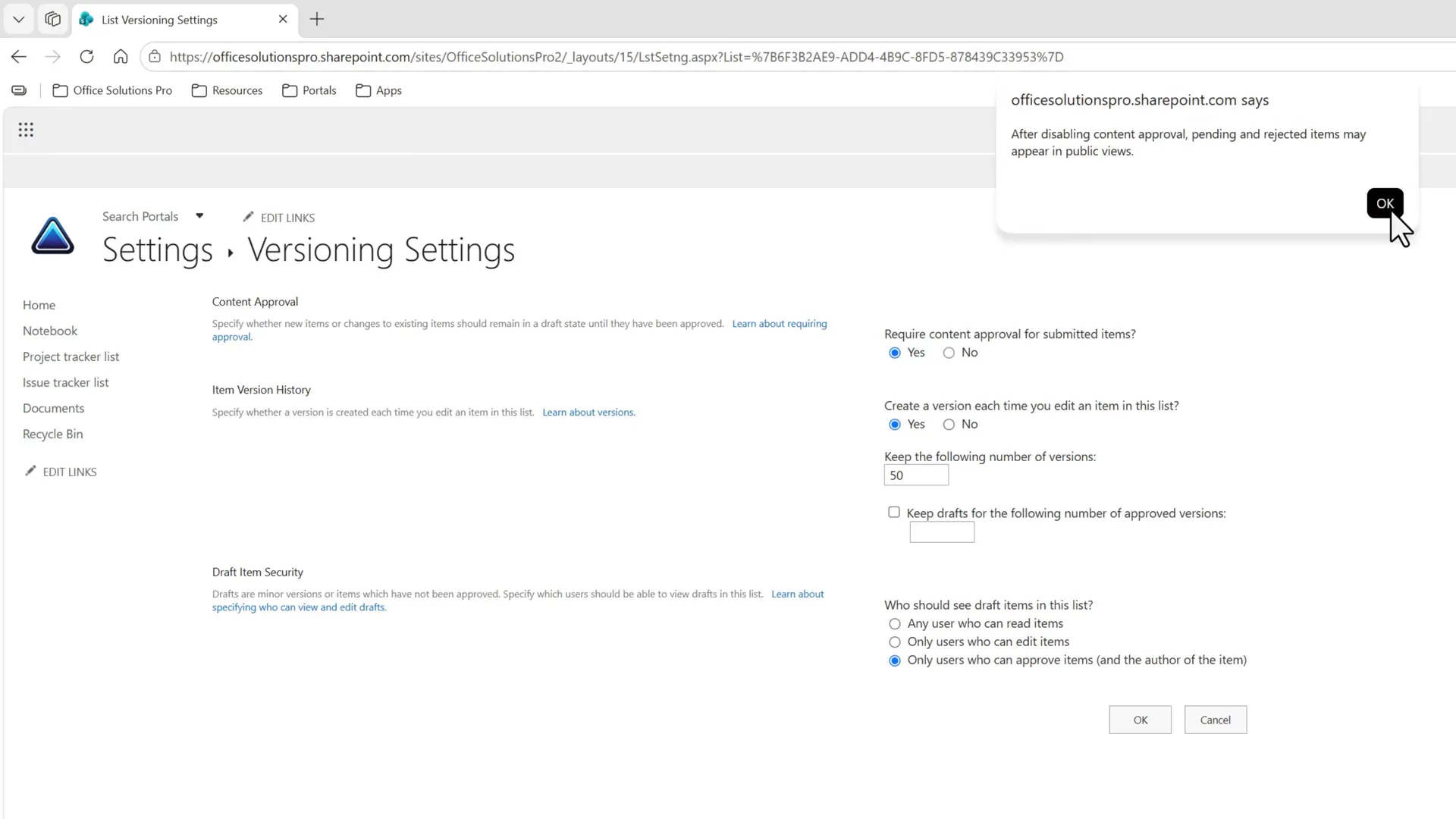
This warning concerns content approval, not turning version history off.
Content approval changes who can see pending content, so leave your existing approval policy unchanged unless you intend to reconfigure it. Microsoft: require approval of items.
3. Open history for one item
Return to the list and select the row using the selection circle. In this example, Request for access, ID 1, has Status = Completed and Resolution = Completed.
Select the command bar’s … menu, then Version history. Make sure only the intended item is selected.
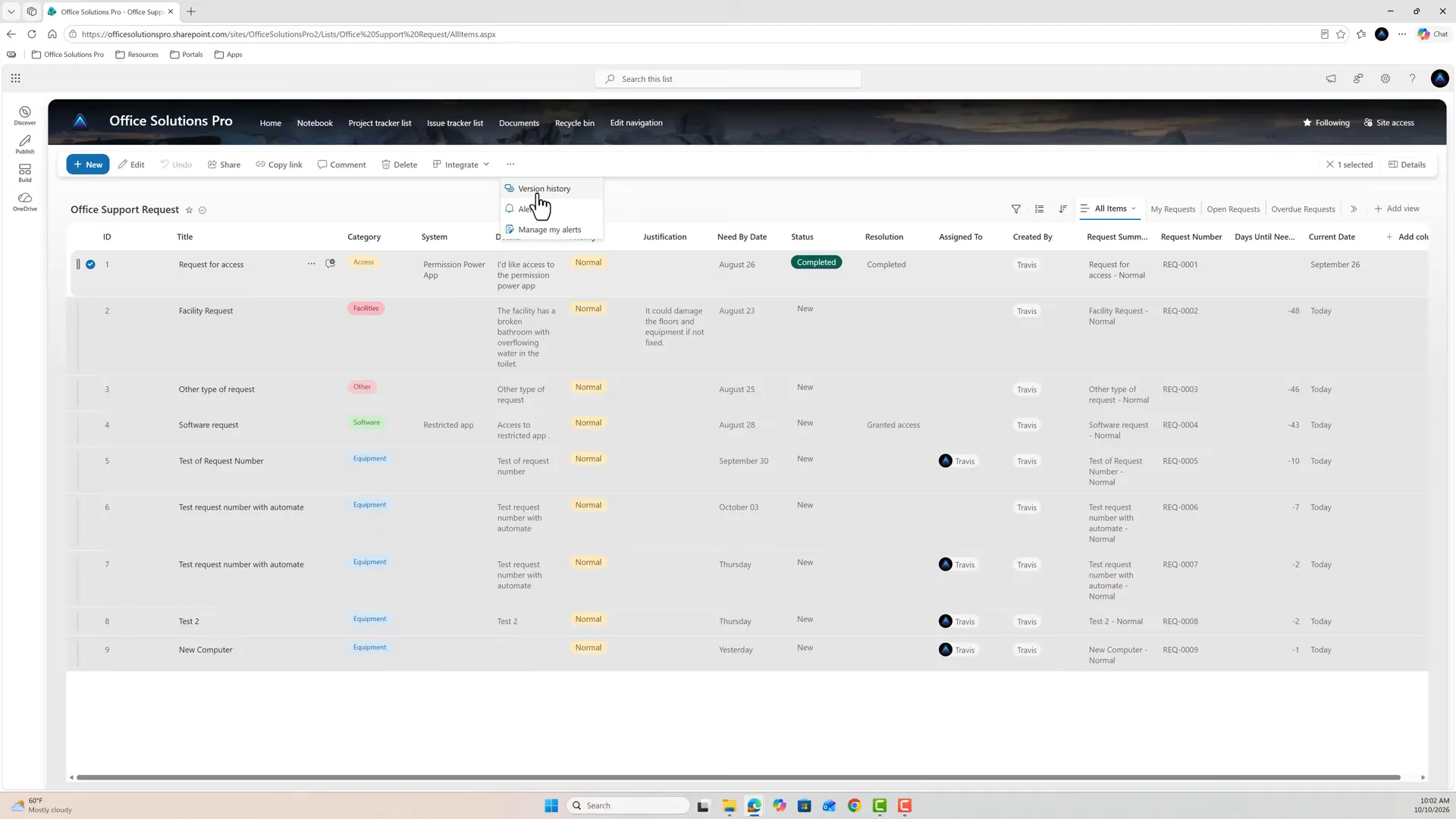
The history command is in the selected item’s command bar menu.
You can also use the item’s … menu to find Version history; some layouts place it under More. Microsoft: view, restore, or delete an earlier version.
If you don’t see Version history in either place, versioning might be turned off, so check the setting in step 2. Microsoft: restore a previous version.
4. Read who changed what and when
The Version history window shows Version, Modified, Modified By, and Changes. Read the timestamp and modifier alongside the changed fields and values.
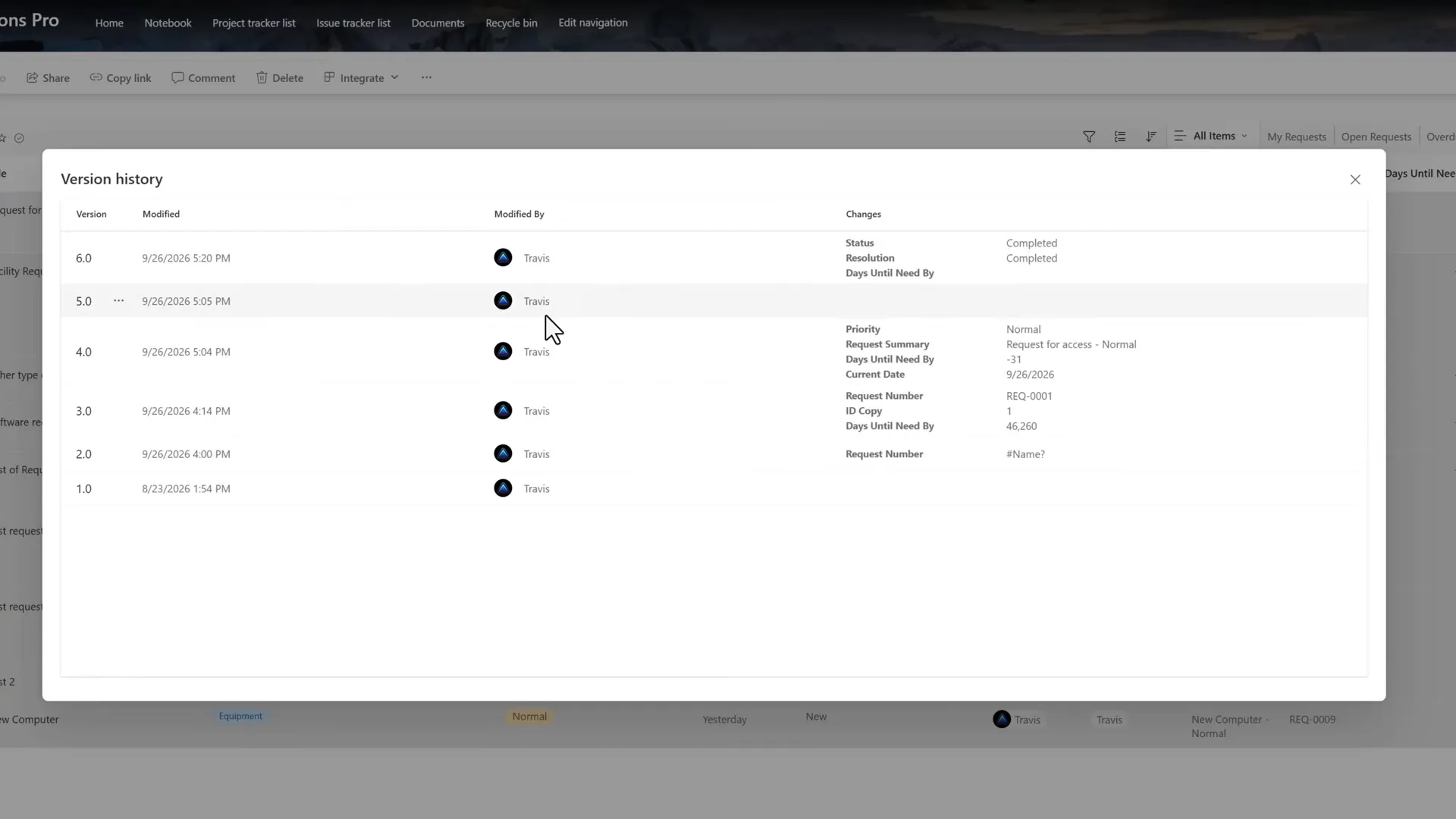
Version 6.0 records the Status and Resolution becoming Completed.
For this item, version 6.0 is dated 9/26/2026 5:20 PM and shows Completed for both fields. Earlier version 5.0, dated 9/26/2026 5:05 PM, precedes that change. In this example, every version shows Travis as the modifier.
Changes lists only what differs from the version before it, so a blank cell, as on version 5.0, doesn’t tell you what the item contained. A field listed with no value was cleared by that update, as Days Until Need By was in version 6.0.
This view shows the retained sequence of changes, rather than just the latest modifier and timestamp. It does not establish why an edit was made, and it only includes versions created while versioning was on.
Recognize automated updates
A second item in this list shows daily changes to Days Until Need By and Current Date. These come from a scheduled automation.
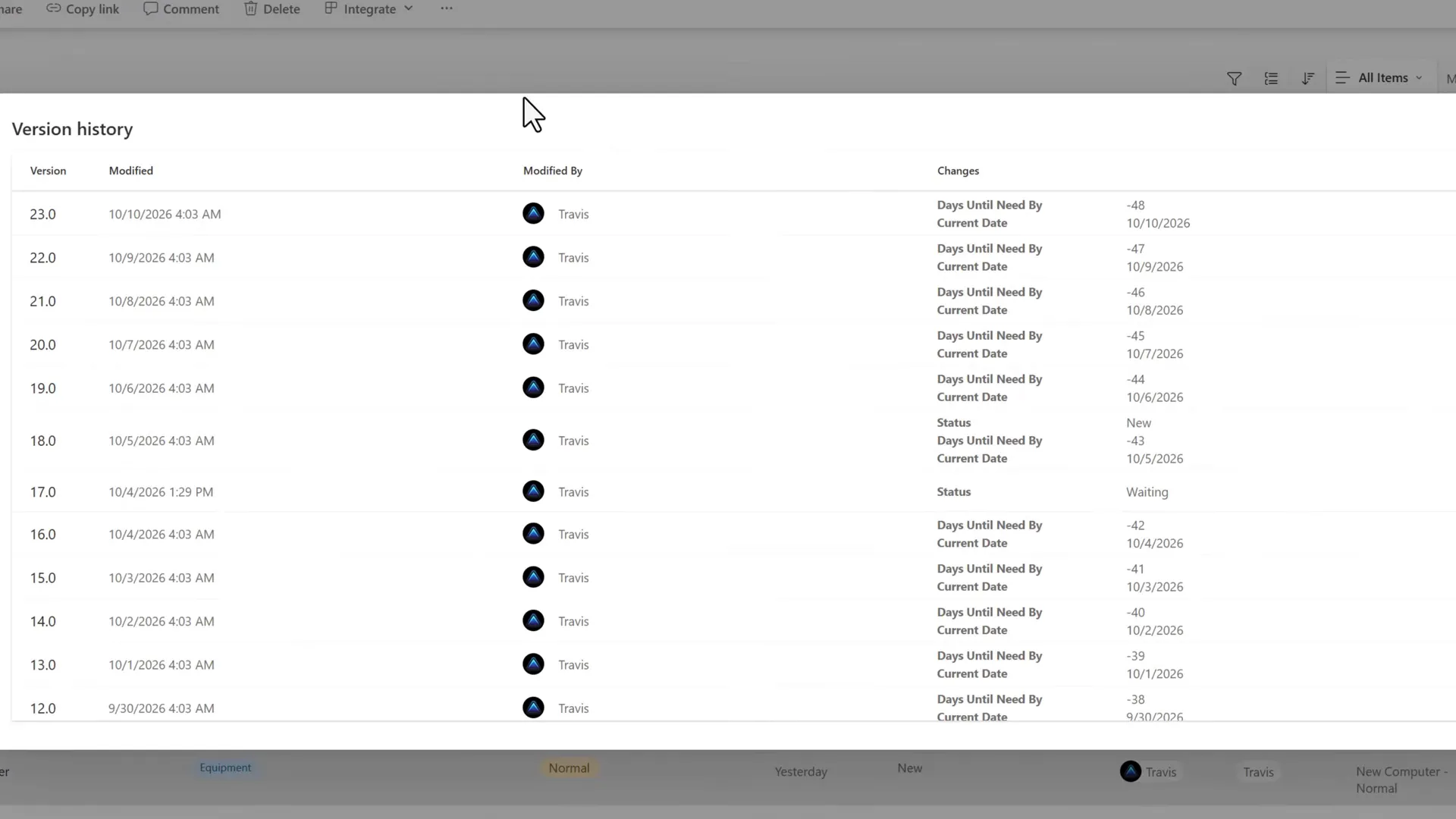
Automation can account for repeated entries; do not assume every row represents a manual edit.
Modified By doesn’t always mean that person made the edit by hand. In this example, the 4:03 AM rows come from a scheduled automation but still show a person’s name. Check the timing and pattern of the rows, and find out which account your automation runs under, before you decide who changed an item.
Close any open history window and return to ID 1 for the restore example.
5. Restore the version before completion
Select Request for access again and reopen Version history. Find version 5.0, the state before the completed-status update.
A restore applies to the whole item, not one field. Microsoft’s restore instructions don’t cover attachments or automations, so don’t count on a restore to bring back an earlier attachment or to undo what an automation has already done. A restore saves a new version, so an automation that runs when items change may run again. Microsoft: SharePoint connector triggers.
Before you restore, find out whether the item has attachments and whether any automation runs when items in the list change. Afterward, open the item to check its attachments, and check the automation’s run history, or ask its owner to.
Point to version 5.0, select the … that appears next to its number, then select Restore. The menu also offers View, which shows a version without overwriting the current one, and Delete; choose Restore for this procedure.
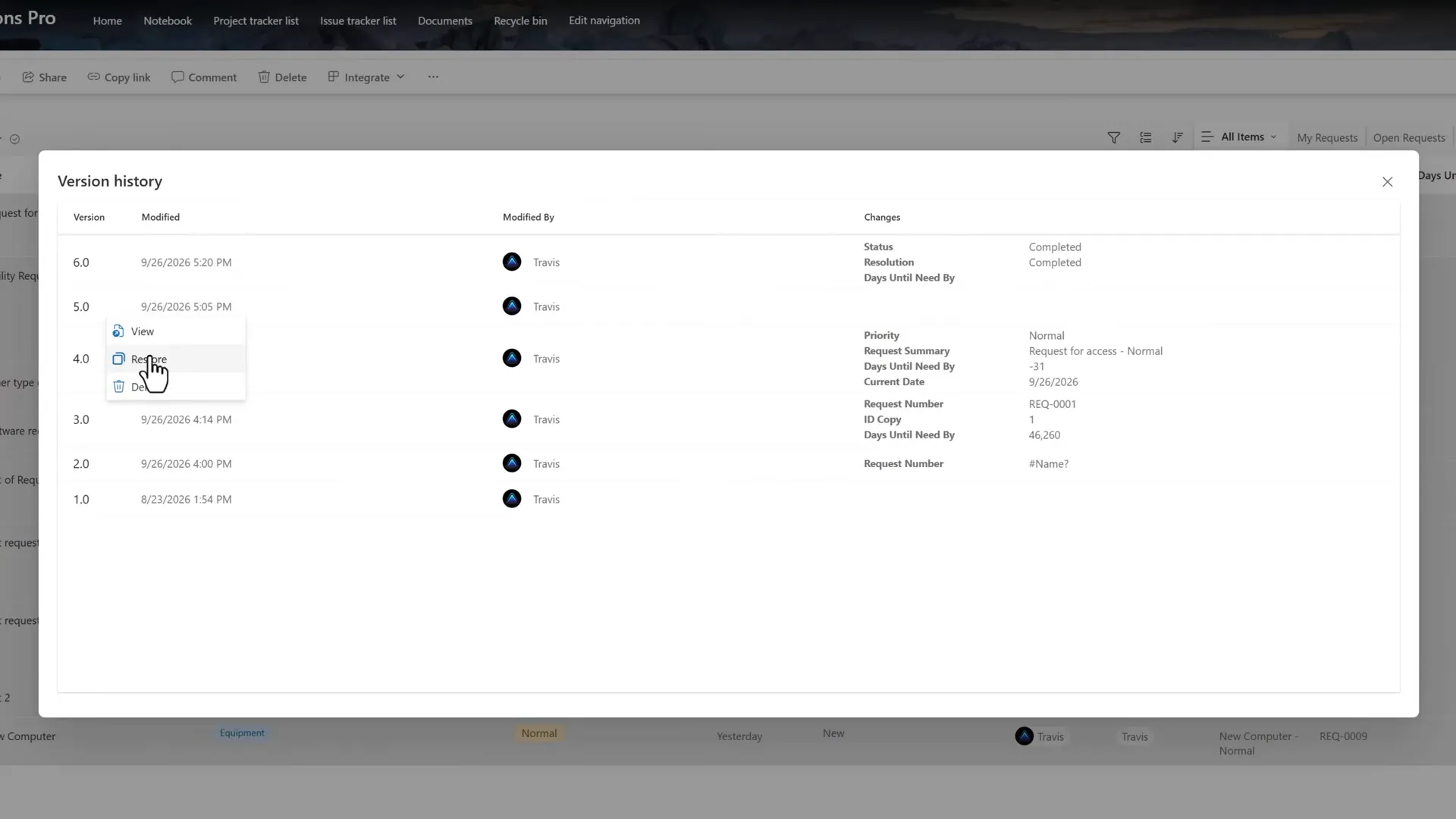
Restore the selected historical state, rather than deleting a version.
If your interface asks you to confirm restoring the selected version as current, select OK after checking the item and version. Microsoft: restore a previous version.
The history now shows a new version 7.0, with Status = New and a blank Resolution. Version 6.0, containing the completed state, remains below it.
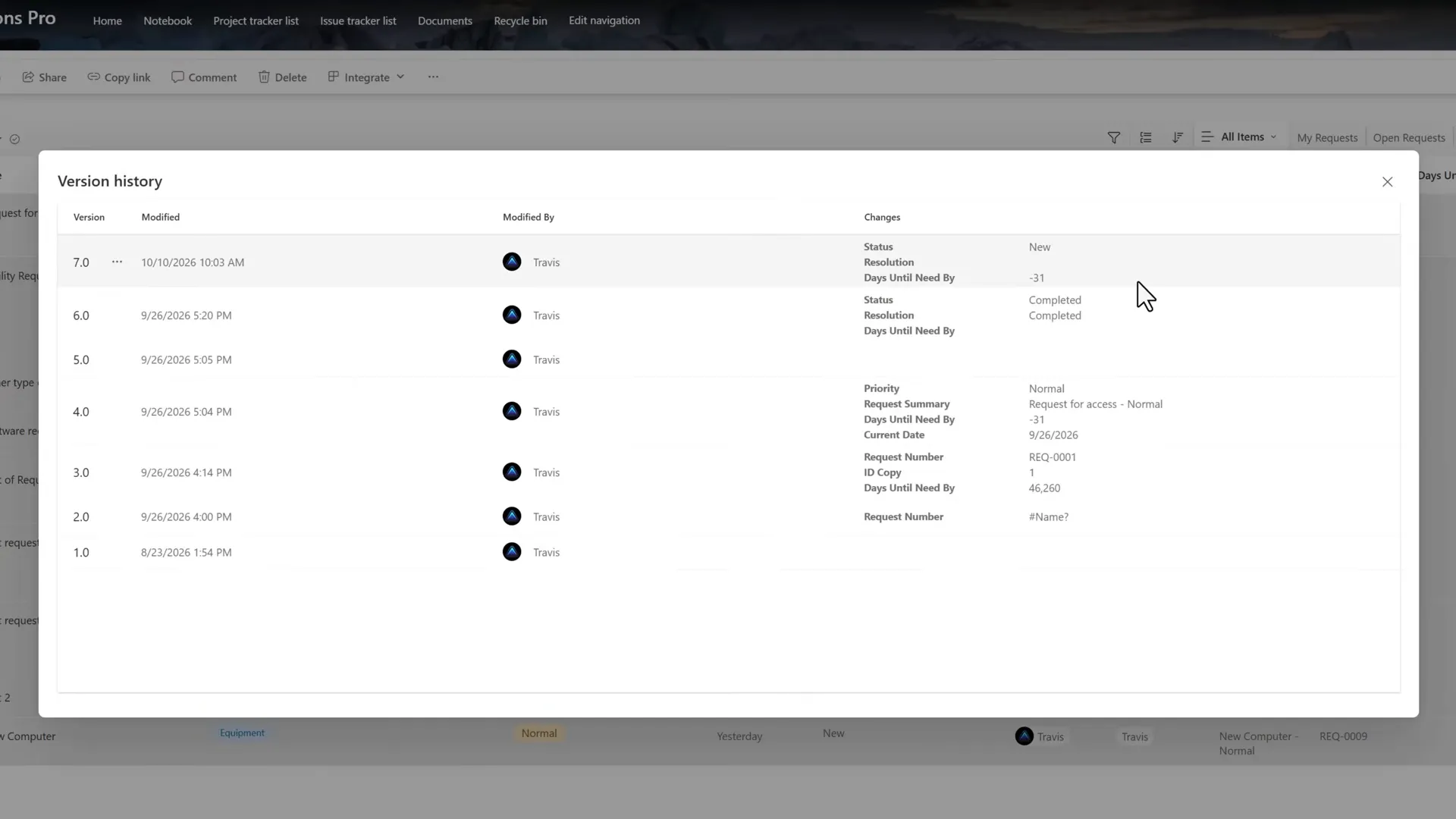
Restoration creates a new latest version; it does not erase the intervening entry.
Restoration copies the earlier version into a new current version. Review the item’s whole restored state, including other fields that may have changed since then. Microsoft: restore a previous version. In this example, version 7.0 records the restore as a new edit, with the signed-in name and the current time.
6. Refresh and validate the restored row
Close the history window using X. Refresh the list page if it still shows the old values.
Find ID 1 and confirm:
- Status is New.
- Resolution is blank.
- The item remains Request for access, with request number REQ-0001.
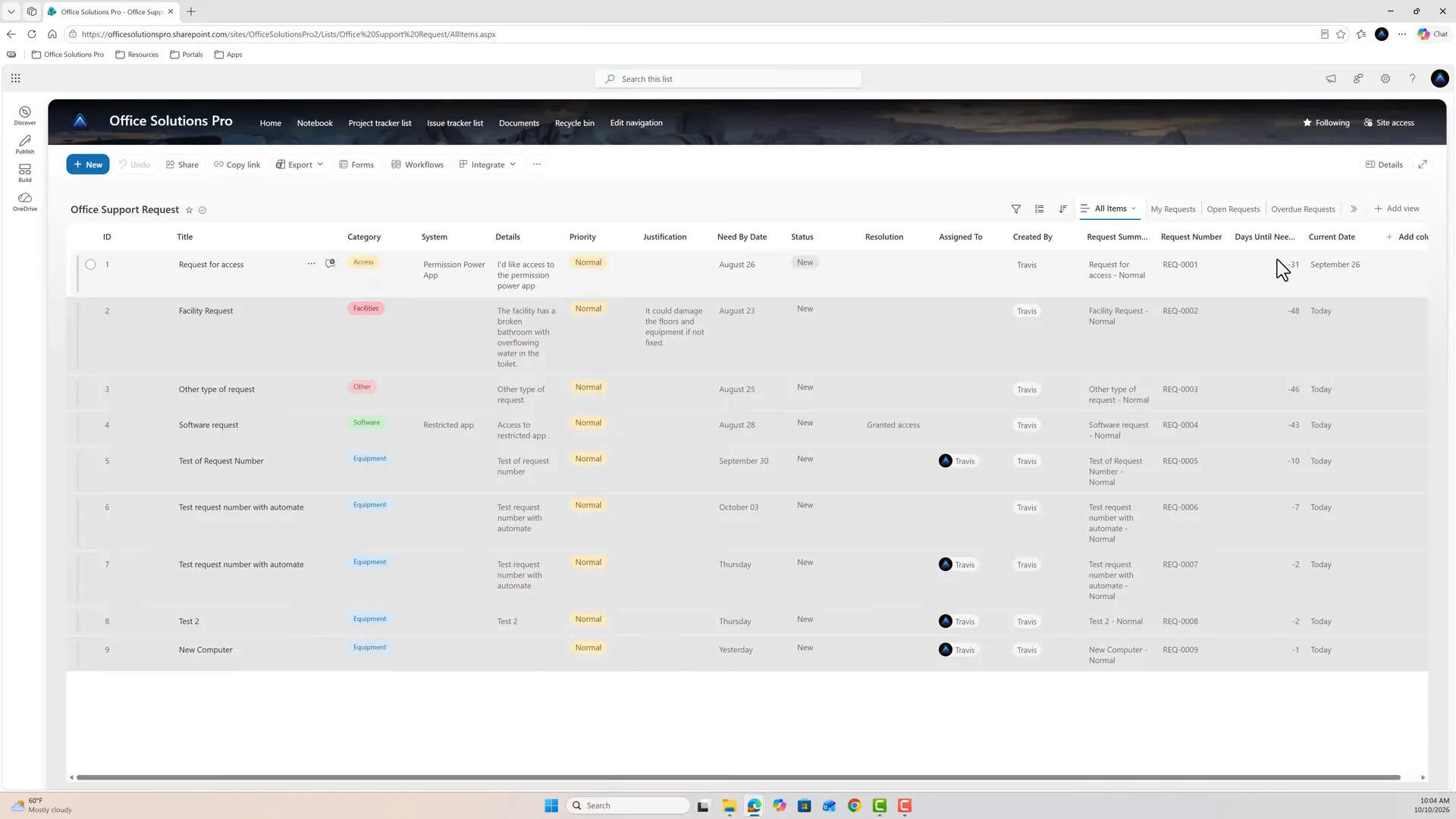
The status and resolution are restored, but stored date fields also carry their historical values.
The −31 under Days Until Need By is a restored stored value, alongside Current Date = September 26. The new version is dated October 10, 2026, so −31 isn’t a current count of days overdue. Verify date-dependent business fields after restoring; refreshing the page here displays the stored historical values.
Version limits and audit limits
History contains the versions still retained, not a guaranteed permanent record. Earlier versions are deleted when the limit is reached. New Microsoft 365 lists normally have versioning on, but existing settings should still be checked; SharePoint Server defaults differ. Microsoft: how versioning works.
The daily-update example in step 4 illustrates why a count-based history limit deserves attention: repeated automated saves can add entries alongside business changes. Do not assume a limit of 50 versions gives 50 days of history.
Version history is useful for investigating and restoring an individual record. It is not a complete auditing solution, and it isn’t tamper-proof. By default, people with Contribute or Edit permission can delete individual versions, and people with Edit permission, which site members have by default, can change the list’s versioning settings. Microsoft: permission levels.
Microsoft Purview separately documents SharePoint list events such as ListItemUpdated; assessing audit coverage, permissions, licensing, and retention is a separate task. Microsoft: SharePoint list activities.
Notifications and a separate change-log list are possible extensions, and neither is built here. This tutorial also doesn’t cover inspecting or rebuilding the automation, its next run, correcting Days Until Need By, or an automation or compliance design.
Companion video
Video: SharePoint List Version History: See Who Changed What? Published October 12, 2026.
If the player is blocked on your network, open the video on YouTube.
Need help applying this to your own setup? Read about consulting.