 Office Solutions Pro
Customize a SharePoint list form with JSON
Add a header, sections, and footer messages to a SharePoint list form, plus a validation rule that requires justification for High-priority requests.
A standard SharePoint form can be easier to scan without building a Power Apps form. This tutorial uses an Office Support Request list to add a blue header with Priority and Status badges, four named sections, and a footer with guidance and status messages. A separate list-validation rule prevents saving a High-priority request when Justification is blank.
The JSON changes presentation. The validation rule performs the save check. Keep those two jobs separate when adapting the example.
Before you begin
This tutorial uses a modern SharePoint Online list in a desktop browser. It starts with an existing list and does not create one. You can build a matching list by following Customize a SharePoint list form without Power Apps or JSON and choosing Single line of text for Justification, or you can prepare your own. Either way, check the notes below the table.
Use an existing list with these fields, or prepare a practice list before pasting the samples:
| Display name | Type | Used for | Required in this example |
|---|---|---|---|
| Title or Request | Single line of text | Request title and header subtitle | Yes |
| Category | Choice | Equipment, Software, Access, Facilities, or Other | Yes |
| System | Single line of text | Application or system concerned | No |
| Details | Multiple lines of text | Request description | No |
| Priority | Choice | Low, Normal, or High; default Normal | Yes |
| Justification | Single line of text | Reason for High priority | No |
| Need By Date | Date and Time | Requested deadline | No |
| Status | Choice | New, In Progress, Waiting, or Completed; default New | No |
| Assigned To | Person or Group | Assignment | No |
| Resolution | Multiple lines of text | Outcome details | No |
For this validation example, Justification must be a Single line of text column, which holds up to 255 characters. List validation formulas can’t use Multiple lines of text columns, and the Insert Column list in step 1 doesn’t offer Details or Resolution, which are that type. Microsoft Q&A: validation and multiple lines of text, Microsoft: column types and options.
If your Justification column is Multiple lines of text, don’t convert it for this tutorial. Microsoft warns that changing an existing column’s type can corrupt the data already stored in it, and that whether you can change it depends on that data. Microsoft: column types and options. Microsoft doesn’t describe this conversion, and any text over 255 characters would be at risk. Use one of these routes instead:
- You’re building the list now: follow Customize a SharePoint list form without Power Apps or JSON and choose Single line of text for Justification in step 2.
- It’s a practice list, and you don’t need its Justification values: delete the column, which permanently removes the column and its data. Then use Add column to create a Single line of text column named
Justification. If you used a conditional formula on the old column, add it again, and check the new column’s position in the form. - You need the saved values: leave the column as it is, and follow this tutorial on a separate practice list with a Single line of text Justification column.
Microsoft: delete a column, Microsoft: create a column.
The first column is the list’s built-in Title column. It may show as Title or, if it was renamed, as Request. This example’s list shows Title. A rename doesn’t change the internal name, so the Header’s [$Title] reference needs no edit. The Body uses display names, so step 3 covers both names.
Title, Category, and Priority are required in this example. Customize a SharePoint list form without Power Apps or JSON leaves Category and Priority optional. The JSON and the validation rule don’t read that setting, so choose what suits your list. The formatting does not create fields or add choice values.
This example’s list also uses conditional formulas: System appears for Software or Access, Justification for High priority, and Resolution for Completed. You don’t need these rules for the JSON or the validation rule. Existing visibility rules can make your preview look different from a list that displays every field.
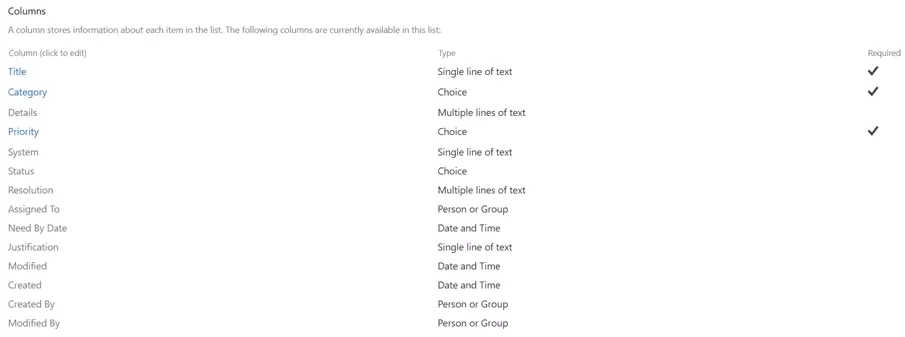
In this list, Justification is Single line of text and the first column shows as Title.
Form configuration requires permission to create and manage views. Saving a validation rule also requires access to the list’s settings. If a centrally published content type is read-only, resolve its editability with the administrator before formatting. Microsoft: configure the list form, Microsoft: edit list settings.
The validation formula and each JSON sample are also available as downloads, linked where you use them.
1. Require justification when Priority is High
From the list, open the Settings gear, select List settings, and then select Validation settings under General Settings.
Enter this formula:
IF([Priority]="High", IF([Justification]="", FALSE, TRUE),TRUE)Enter it as shown, without a leading equals sign. This is the list-validation formula, not a JSON formatting expression. You can also download the formula and message.
Set User Message to:
A justification is required when Priority is High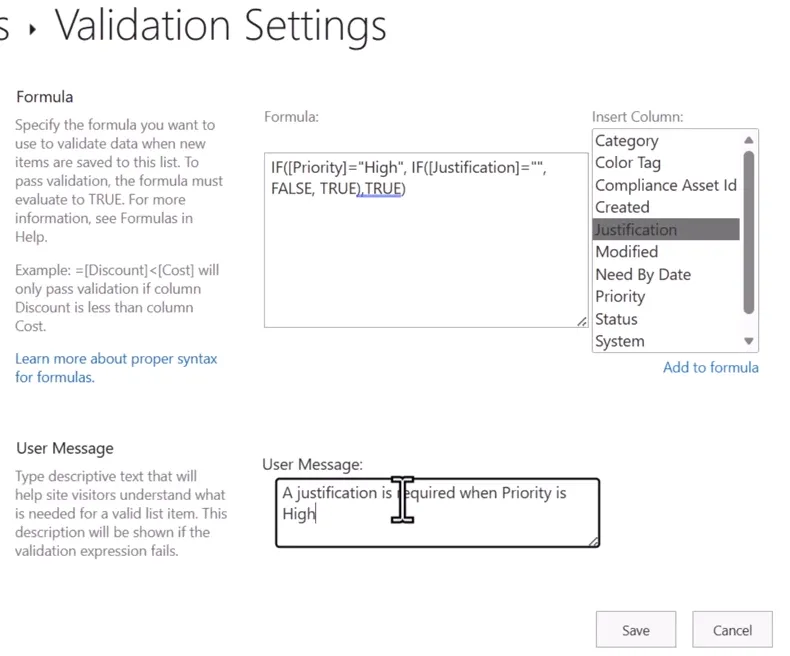
Select Save. The formula returns FALSE for High priority with an empty Justification and TRUE otherwise. It checks whether a value is empty, not whether the explanation is useful. Microsoft: common list formulas, Microsoft: edit list settings.
Return to the list and select New. Enter a value such as Test in Title or Request, choose Equipment for Category, set Priority to High, leave Justification blank, and select Save.
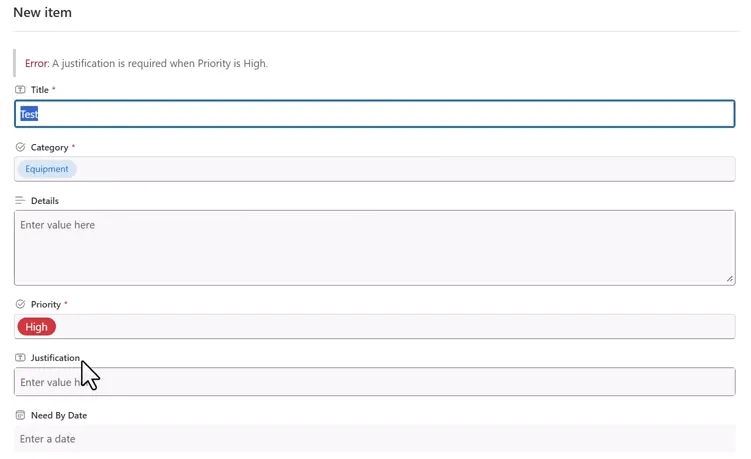
The attempted save shows “Error: A justification is required when Priority is High.”
The rule does not add a conditional required-field asterisk to Justification. It rejects an invalid save. A visibility rule can reveal Justification; that rule alone would not require a value.
The Validation Settings page mentions new items, but Microsoft’s older, archived developer reference says the formula is evaluated each time an item is added or updated. Look for existing High-priority items with a blank Justification, then try editing one to see how your list treats it. Microsoft: ValidationFormula (archived).
2. Open the layout editor and add the header
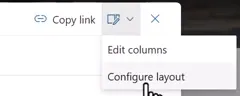
Close the unsuccessful test form without creating the item. Open a fresh form using New. At the top right, expand the form-edit icon and select Configure layout.
In the Format pane, use Apply formatting to to select Header. Paste this complete JSON, then select Preview. You can also download header.json.
{ "elmType": "div", "attributes": { "class": "ms-bgColor-themePrimary ms-fontColor-white" }, "style": { "width": "100%", "box-sizing": "border-box", "padding": "16px 18px", "border-radius": "6px", "margin-bottom": "12px" }, "children": [ { "elmType": "div", "style": { "display": "flex", "justify-content": "space-between", "align-items": "center", "gap": "12px", "flex-wrap": "wrap" }, "children": [ { "elmType": "div", "children": [ { "elmType": "div", "txtContent": "Office Support Request", "style": { "font-size": "22px", "font-weight": "600" } }, { "elmType": "div", "txtContent": "=if([$Title] == '', 'New request', [$Title])", "style": { "font-size": "14px", "margin-top": "4px", "opacity": "0.9" } } ] }, { "elmType": "div", "style": { "display": "flex", "gap": "8px", "align-items": "center", "flex-wrap": "wrap" }, "children": [ { "elmType": "span", "txtContent": "=if([$Priority] == '', 'Priority not set', [$Priority])", "style": { "padding": "4px 10px", "border-radius": "999px", "font-weight": "600", "background-color": "=if([$Priority] == 'High', '#fde7e9', if([$Priority] == 'Low', '#dff6dd', '#fff4ce'))", "color": "=if([$Priority] == 'High', '#a4262c', if([$Priority] == 'Low', '#107c10', '#605e5c'))" } }, { "elmType": "span", "txtContent": "=if([$Status] == '', 'New', [$Status])", "style": { "padding": "4px 10px", "border-radius": "999px", "font-weight": "600", "background-color": "=if([$Status] == 'Completed', '#dff6dd', if([$Status] == 'In Progress', '#deecf9', if([$Status] == 'Waiting', '#fff4ce', '#f3f2f1')))", "color": "=if([$Status] == 'Completed', '#107c10', if([$Status] == 'In Progress', '#005a9e', if([$Status] == 'Waiting', '#8a6d1d', '#323130')))" } } ] } ] } ]}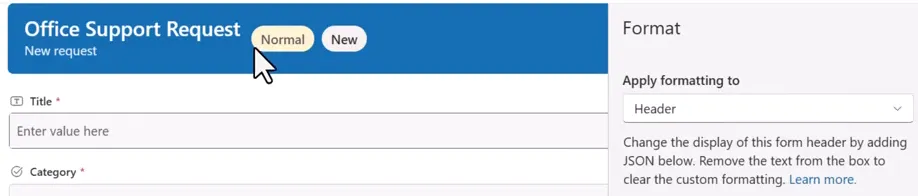
The header displays “New request” when the Title or Request value is blank. The Priority badge uses red for High, green for Low, and yellow for other values. The Status badge has separate colors for Completed, In Progress, Waiting, and the fallback state. These labels and colors come from the sample code; adapt its exact choice strings if your list uses different values. The header background uses the site’s theme primary color, so it may not be blue on your site.
The JSON uses gap, which isn’t on Microsoft’s list of allowed styles, so don’t rely on that spacing. If you need to adjust it, use margin properties, which are on the list. Microsoft: formatting styles.
Save your header before moving on, so your work is kept, then reopen Configure layout if the pane closes.
3. Arrange the body into four sections
Select Body in Apply formatting to. The JSON below is for a list whose first column shows as Request. If yours shows as Title, read the change after it before you paste:
{ "sections": [ { "displayname": "Request Details", "fields": [ "Request", "Category", "System", "Details" ] }, { "displayname": "Priority and Timing", "fields": [ "Priority", "Need By Date", "Justification" ] }, { "displayname": "Assignment and Status", "fields": [ "Assigned To", "Status" ] }, { "displayname": "Resolution", "fields": [ "Resolution" ] } ]}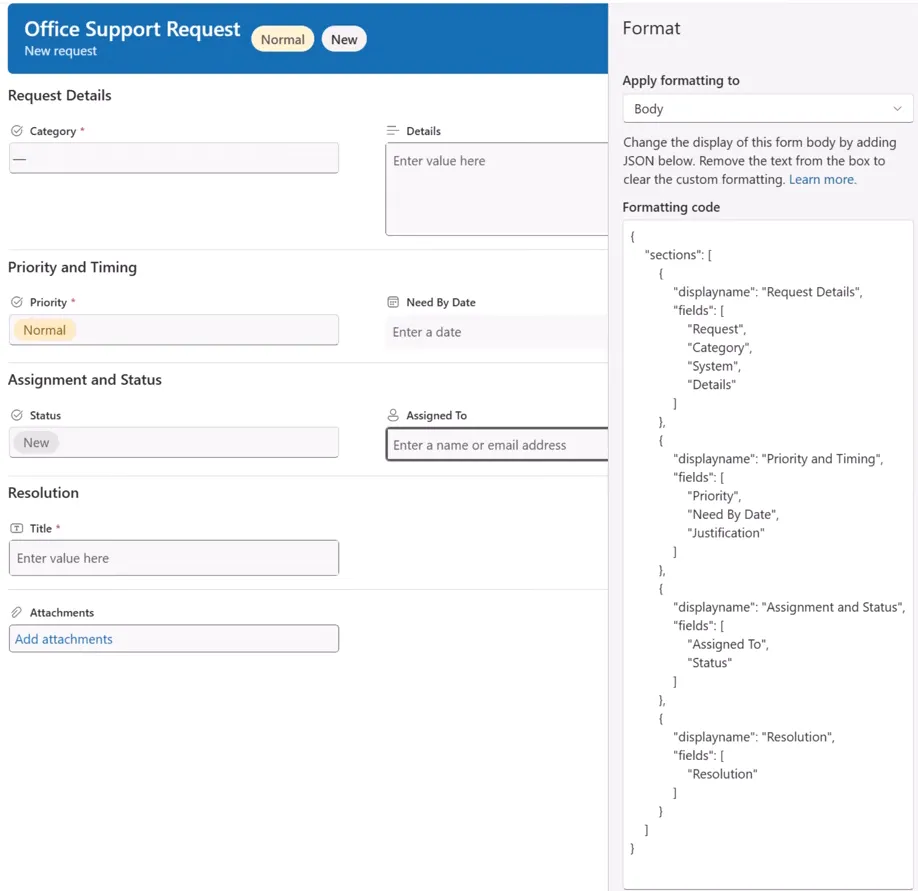
Match the first field to your list: Body field arrays use display names, so each entry must match the name your list shows now. The first field is written as Request, but the list in this screenshot shows that column as Title. As a result, the preview places Title under Resolution instead of Request Details. Microsoft documents that unlisted columns go into the last section. If your column shows as Title, replace "Request" with "Title" before saving. If it shows as Request, keep "Request". Microsoft: configure the form body.
Both versions are available to download: body-request.json uses Request, and body-title.json uses Title. That field name is the only difference between them.
Select Preview and check the grouping, then Save. Your intended layout is Request Details; Priority and Timing; Assignment and Status; and Resolution. Body layout organizes the fields, while any existing conditional visibility still determines which fields appear. It does not create or duplicate fields. Configuring the body also switches the form from a single-column to a multi-column layout. Attachments isn’t in the sample JSON, and it appears in the last section of this preview. In these screenshots, fields inside a section keep the form’s existing order rather than the order in the JSON, so Status comes before Assigned To.
4. Add the footer and its reminders
This footer has four messages: an instruction, a red High-priority reminder, a yellow past-due message, and a green Completed message. The instruction always appears, and the others depend on the item’s values:
| Message | Appears when | What it enforces |
|---|---|---|
| Provide enough detail | Always | Display only |
| High priority requests require a justification | Priority is High | Display only; the step 1 rule checks Justification |
| This request is past its Need By Date | Need By Date isn’t empty, Status isn’t Completed, and the date is before @now | Display only |
| Completed requests should include resolution details | Status is Completed | Display only; it does not check whether Resolution is empty |
These messages only change what the form shows. They don’t stop a save, so they aren’t a substitute for a validation rule, and they don’t control who can see or edit an item, so they aren’t a substitute for permissions.
If you only want the first two messages, go to Use a smaller footer instead.
Check the internal name of Need By Date
The past-due message refers to the date column as [$NeedByDate] in two places. Expression references use internal field names, not the display names in the Body JSON, and a column’s internal name can differ from the name you see. If the name is wrong, you may not see an error. In this example, the form showed none, and the past-due message didn’t appear, even on a past-due item.
Find your column’s name before you paste the JSON. Use either method:
- Open List settings, select the column under Columns, and read the value after
Field=in the page address. If the address shows%5F, read it as an underscore. - Sort the list by the column and read the value after
sortField=in the address. In this example, the address showssortField=NeedByDate.
A column added from the list view may not use _x0020_, and Customize a SharePoint list form without Power Apps or JSON adds Need By Date that way, so your name may be NeedByDate. Another list may use a name such as Need_x0020_By_x0020_Date. If yours isn’t NeedByDate, replace both references.
Add the footer
Reopen the layout editor if needed and choose Footer. Paste this JSON. You can also download footer-full.json.
{ "elmType": "div", "style": { "width": "100%", "box-sizing": "border-box", "padding": "12px 16px", "margin-top": "12px", "border-top": "1px solid #edebe9", "background-color": "#faf9f8" }, "children": [ { "elmType": "div", "style": { "display": "flex", "align-items": "center", "gap": "8px", "color": "#605e5c", "font-size": "13px" }, "children": [ { "elmType": "div", "attributes": { "iconName": "Info" } }, { "elmType": "span", "txtContent": "Provide enough detail for the support team to understand and work the request." } ] }, { "elmType": "div", "style": { "display": "=if([$Priority] == 'High', 'flex', 'none')", "align-items": "center", "gap": "8px", "margin-top": "10px", "padding": "8px 10px", "border-radius": "4px", "background-color": "#fde7e9", "color": "#a4262c", "font-weight": "600" }, "children": [ { "elmType": "div", "attributes": { "iconName": "Warning" } }, { "elmType": "span", "txtContent": "High priority requests require a justification before the item can be saved." } ] }, { "elmType": "div", "style": { "display": "=if([$NeedByDate] != '' && [$Status] != 'Completed' && [$NeedByDate] < @now, 'flex', 'none')", "align-items": "center", "gap": "8px", "margin-top": "10px", "padding": "8px 10px", "border-radius": "4px", "background-color": "#fff4ce", "color": "#8a6d1d", "font-weight": "600" }, "children": [ { "elmType": "div", "attributes": { "iconName": "Clock" } }, { "elmType": "span", "txtContent": "This request is past its Need By Date and is not marked Completed." } ] }, { "elmType": "div", "style": { "display": "=if([$Status] == 'Completed', 'flex', 'none')", "align-items": "center", "gap": "8px", "margin-top": "10px", "padding": "8px 10px", "border-radius": "4px", "background-color": "#dff6dd", "color": "#107c10", "font-weight": "600" }, "children": [ { "elmType": "div", "attributes": { "iconName": "Completed" } }, { "elmType": "span", "txtContent": "Completed requests should include resolution details." } ] } ]}Select Preview. Expect the instruction, plus any other message that matches the item.

In this example, the other messages appear beside the instruction when they apply. Each is display only: its expression checks the item’s values, and the separate list rule checks Justification.
Select the formatter’s Save to apply your footer. This is separate from the item’s Save command.

Use a smaller footer instead
If you don’t need the past-due and Completed messages, reopen the layout editor if needed, choose Footer, and paste this footer instead. It replaces the JSON above rather than adding to it. It has only the first two messages and doesn’t refer to Need By Date, so you don’t need to check an internal name. You can also download footer-starter.json.
{ "elmType": "div", "style": { "width": "100%", "box-sizing": "border-box", "padding": "12px 16px", "margin-top": "12px", "border-top": "1px solid #edebe9", "background-color": "#faf9f8" }, "children": [ { "elmType": "div", "style": { "display": "flex", "align-items": "center", "gap": "8px", "color": "#605e5c", "font-size": "13px" }, "children": [ { "elmType": "div", "attributes": { "iconName": "Info" } }, { "elmType": "span", "txtContent": "Provide enough detail for the support team to understand and work the request." } ] }, { "elmType": "div", "style": { "display": "=if([$Priority] == 'High', 'flex', 'none')", "align-items": "center", "gap": "8px", "margin-top": "10px", "padding": "8px 10px", "border-radius": "4px", "background-color": "#fde7e9", "color": "#a4262c", "font-weight": "600" }, "children": [ { "elmType": "div", "attributes": { "iconName": "Warning" } }, { "elmType": "span", "txtContent": "High priority requests require a justification before the item can be saved." } ] } ]}Select Preview. Expect the instruction, plus the red reminder when Priority is High. Then select the formatter’s Save, which is separate from the item’s Save command.
5. Reopen an existing request and check the result
Close the form, open an existing request, and choose Edit. This example opens Facility Request, which has Priority High and Status New.
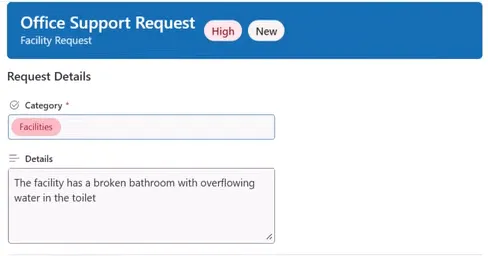
Scroll down and inspect the footer. A High-priority request shows the red reminder even when Justification already contains text. Its expression checks Priority alone, so this is expected.
This list still has the mismatch from step 3, so Title appears under Resolution in its forms, as the screenshots later in this step show. In this example, adding a period to Details in Facility Request and saving the item produces no validation error, because this High-priority request already has a Justification.
For your own list, check the following after saving the formatters:
- A High-priority item with blank Justification produces the validation message.
- A High-priority item with a meaningful Justification saves when all other required fields are valid.
- A Normal- or Low-priority item does not fail this particular validation rule for blank Justification.
- The Title column, or Request if you renamed it, appears in Request Details.
- The header and footer messages appear on reopened forms. Test both new and existing items, including any visibility rules you already use. Note whether the High-priority reminder appears as soon as you change Priority or only on a saved item. Either way, the validation rule is what blocks the save.
Check the past-due and Completed messages
If you used the footer with four messages, try it on a practice list first, using items like these. The list in these screenshots has extra columns, so ignore any fields this tutorial doesn’t cover.
| Need By Date | Status | Priority | Footer shows |
|---|---|---|---|
| Past | New | Normal | Instruction and yellow past-due message |
| Past | New | High | Instruction, red reminder, and yellow past-due message |
| Past | Completed | Normal | Instruction and green Completed message, with no past-due message |
| Future | New | Normal | Instruction only |
| Empty | New | Normal | Instruction only |
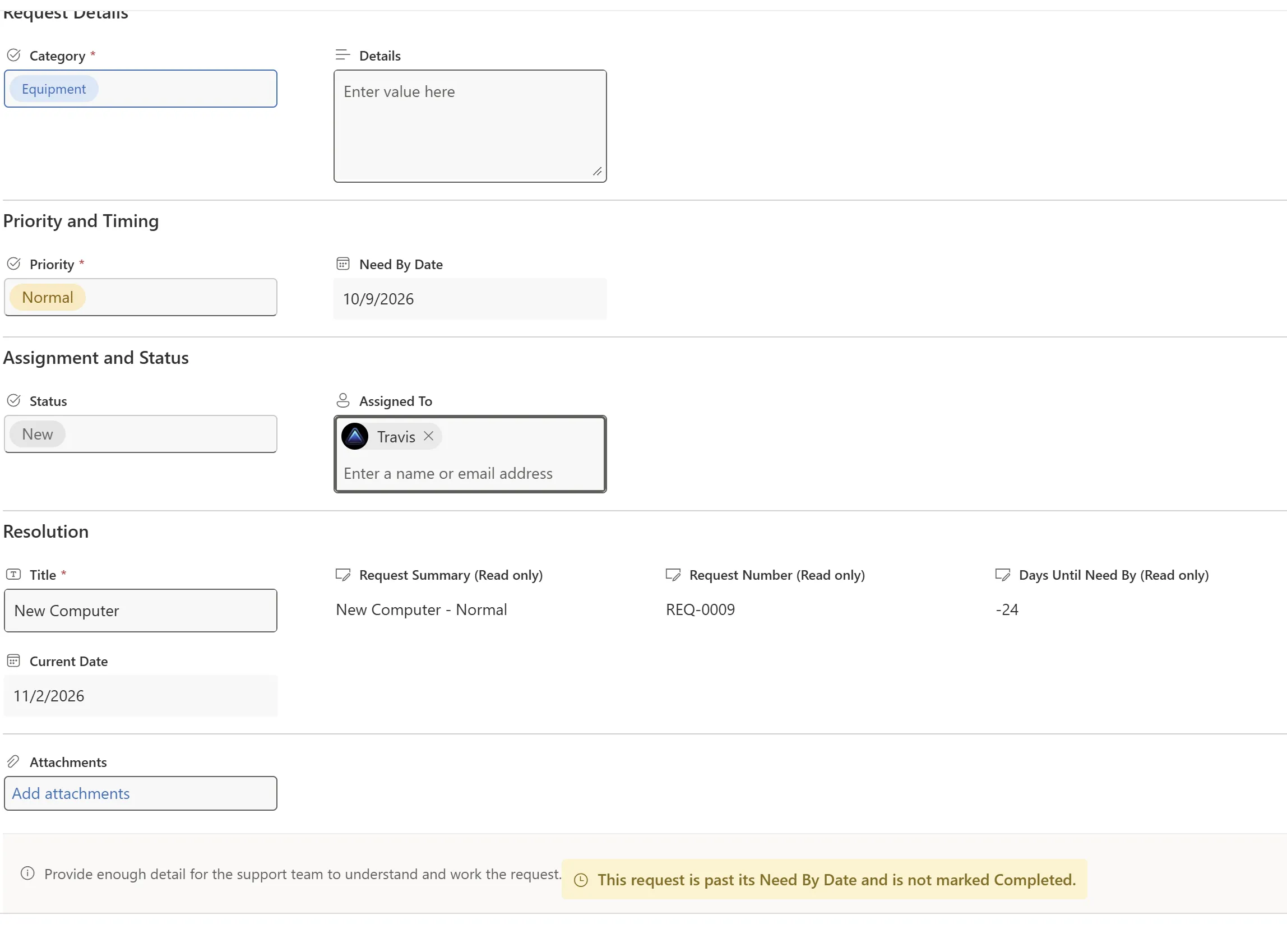
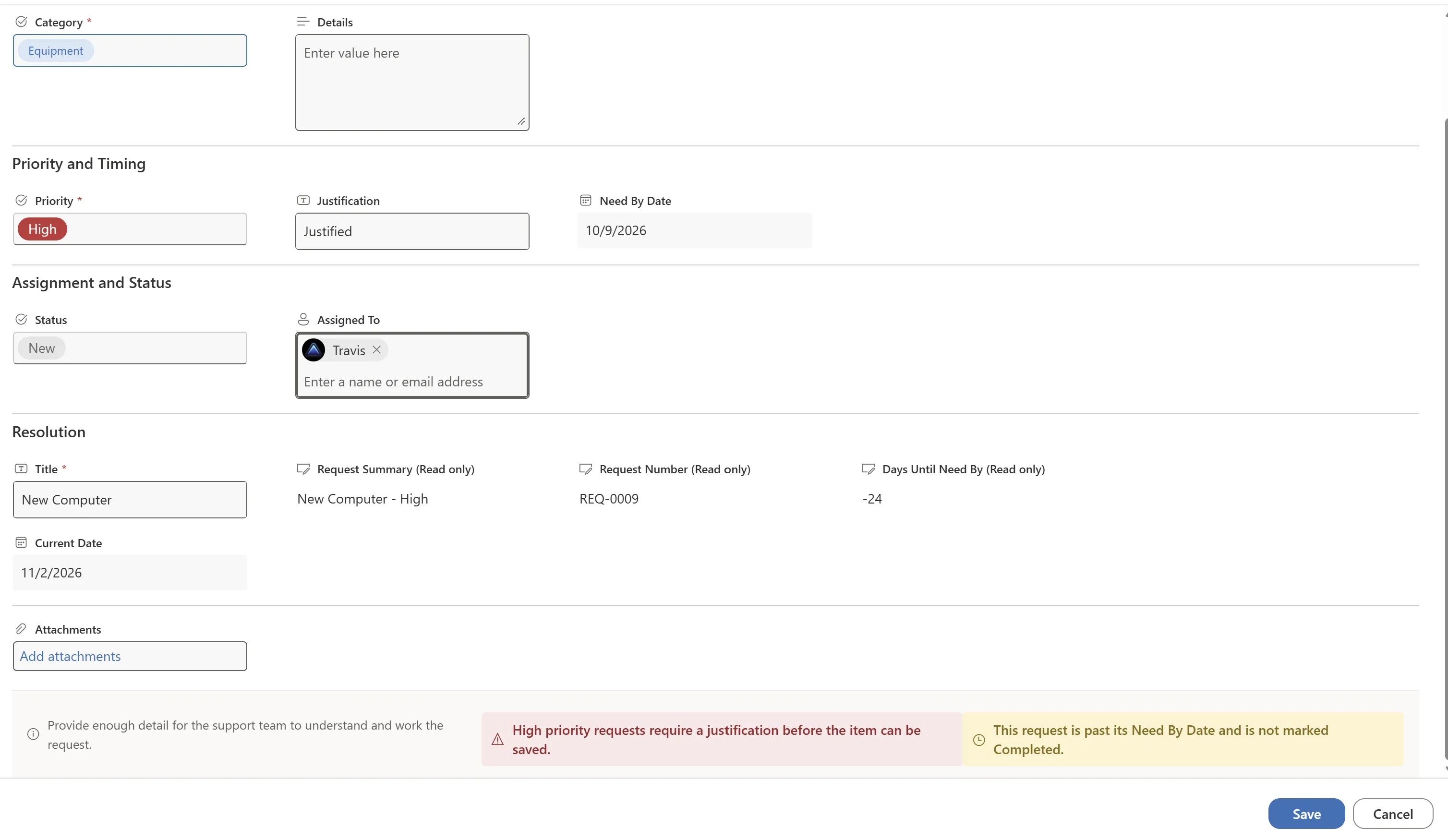
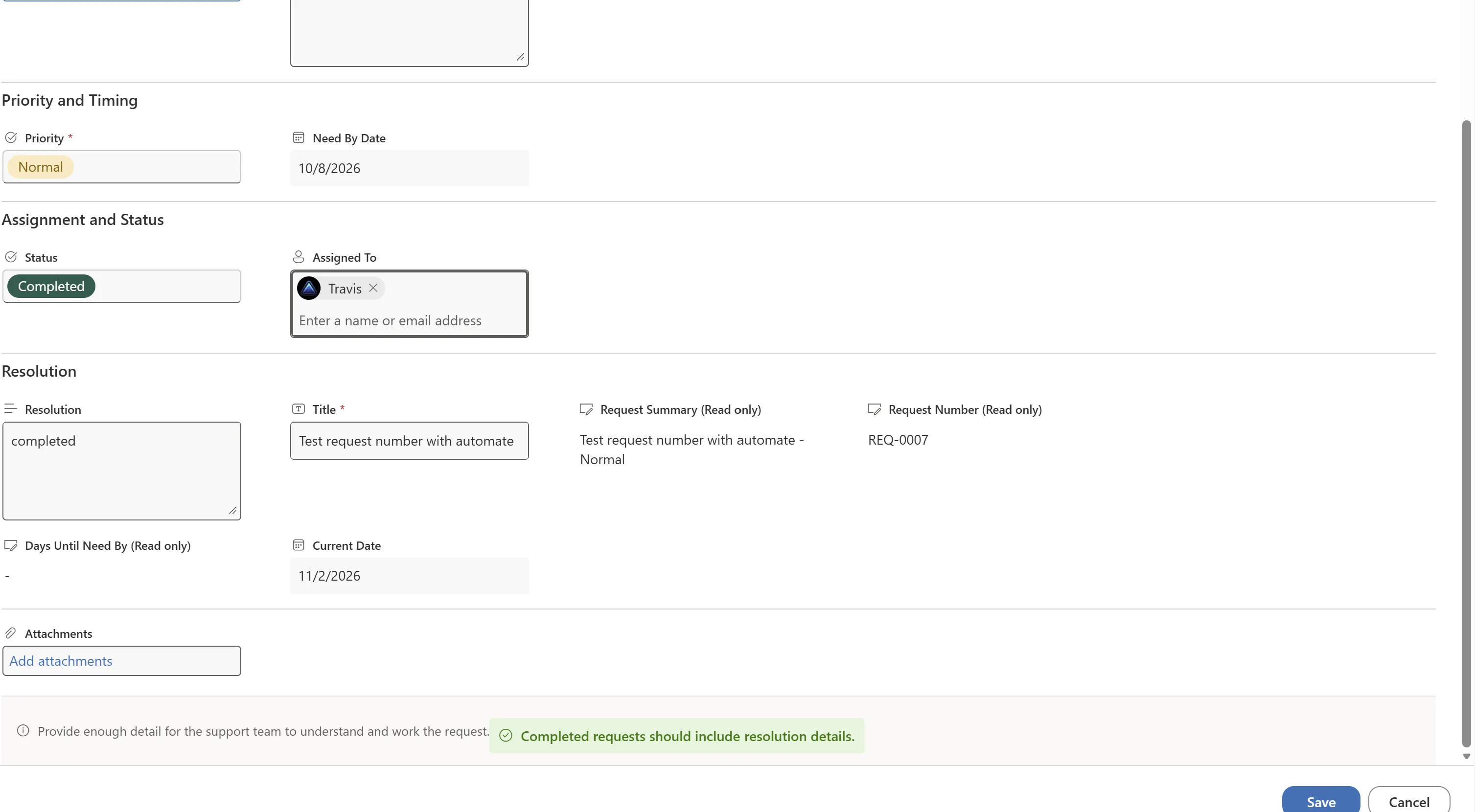
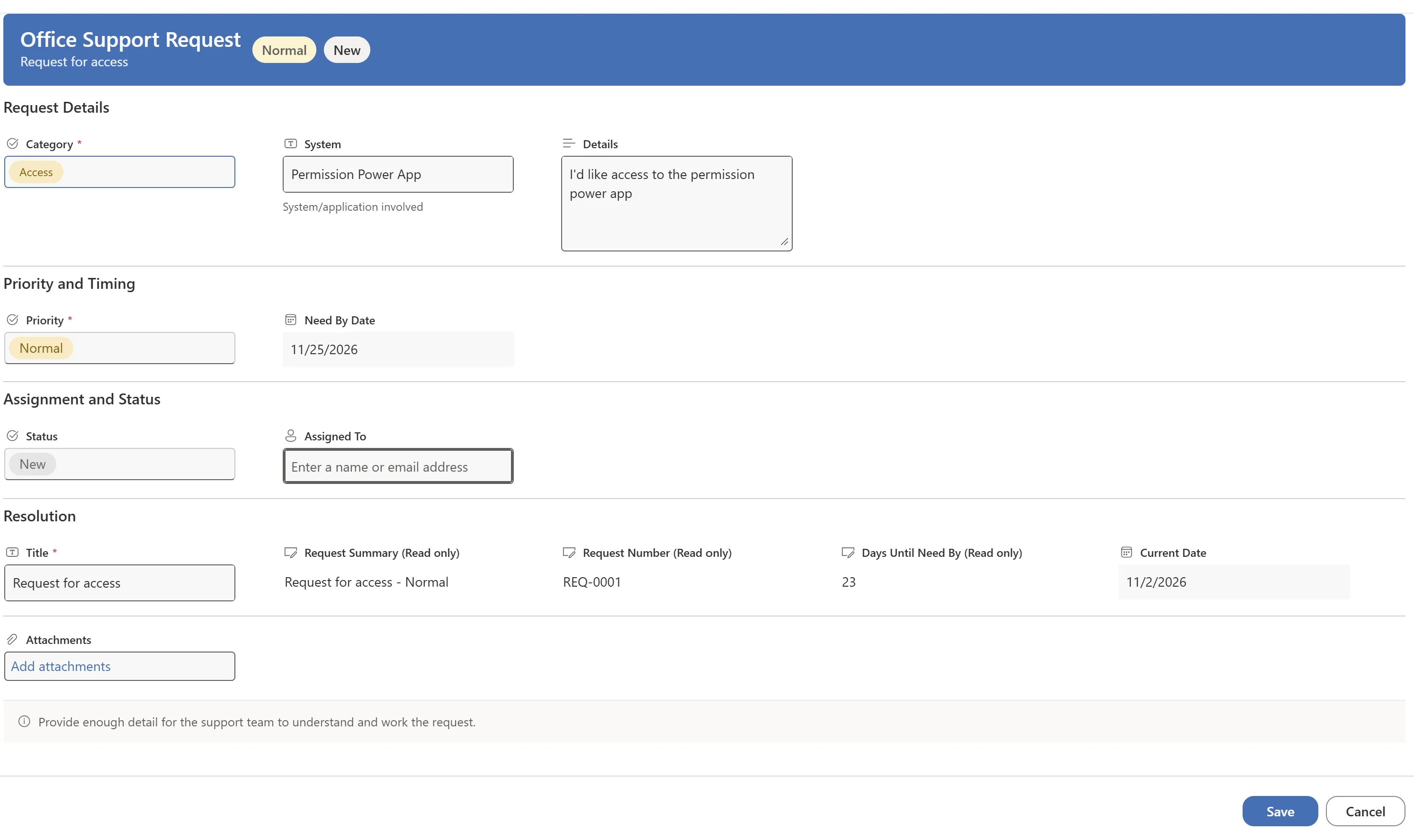
The red reminder doesn’t prove a save will be blocked. Only the list validation rule blocks it, so confirm that with check 1 in the numbered list above.
@now means the current date and time, so the past-due check is not an end-of-calendar-day rule. Microsoft documents this kind of date comparison for column formatting, not for form footers. Test a request due today as well, because this example doesn’t show that case. Microsoft: formatting syntax, field references and @now, Microsoft: column formatting.
Reuse the formatters
Keep working copies of the Header, Body, and Footer JSON so you can adapt the text, badges, and section labels for another list. Header and Footer define visual elements; Body defines field sections. Microsoft supplies examples for all three regions. Microsoft: form configuration.
Team contact information and Created By are possible footer additions for a later customization.
Companion video
Video: Customize SharePoint List Forms with JSON – No Power Apps Needed. Published August 31, 2026.
If the player is blocked on your network, open the video on YouTube.
Need help applying this to your own setup? Read about consulting.