 Office Solutions Pro
Add a live character counter to a Power Apps form
Show characters remaining beneath a modern text input, enforce a matching input limit, and update the count while users type.
A characters-remaining label helps users write within a field’s limit. Combine MaxLength on the input with a Text control that subtracts the current text length from that limit. Then set Trigger output to Key press so the count changes while the user types.
The example adds a 400-character limit to Recommendation from Requestor in a project request canvas app. You can apply the pattern to an existing form without rebuilding that example app.
Before you start
Open a working canvas app in Power Apps Studio with permission to edit it, such as owner or co-owner access. Start with a text input already bound to the correct form field. Keep a copy before updating controls or unlocking cards.
The example uses a SharePoint-backed form. SharePoint is a Standard connector; the complete app still needs appropriate licenses and data permissions. Apps using Dataverse or other premium capabilities can require premium entitlements. See Power Apps licensing.
Choose a limit suitable for the field and its data source. The 400-character example is an app design choice, not a SharePoint or Power Apps platform maximum. Adding a counter does not increase storage capacity or create a data-source validation rule.
1. Check the input control and its text property
- Select the text input inside the target data card. In this example, it is named
DataCardValue30. - Check which property exposes its current text. Current modern Text Input controls use Text.
- If you choose to update an older control, check dependent formulas afterward. A card’s Update formula that still references the old input’s
.Valueproperty may need to reference.Textinstead.
For the updated example control, the data card’s Update property is:
DataCardValue30.Text
Keep the form’s save binding connected to the actual input value.
If your existing control still exposes Value, use that property consistently until you update it. Do not replace .Value throughout the app indiscriminately; other control types can legitimately use it. Check the selected input’s available properties and fix the affected references only. Microsoft’s modern Text Input documentation describes the current Text output.
2. Set the input’s maximum length
On DataCardValue30, set MaxLength to:
400
Set the limit on the input control itself.
MaxLength limits what users can type into this input. Keep the existing card’s DataField, Default, validation, and Update bindings intact. Inspect existing records before lowering a limit, and check that saving remains valid for the underlying field.
3. Insert and position the counter label
- Select the field’s data card and insert a modern Text control inside it. Unlock the card if prompted, or use its Advanced properties to unlock it first.
- Rename the new control to
CharacterCountRecommendation. - Position it beneath the input. Set its Y property to:
DataCardValue30.Y + DataCardValue30.Height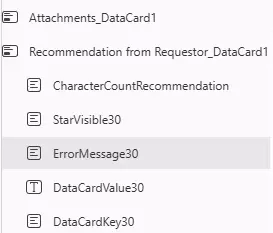
Keep the counter with the field it describes.

- Give the counter enough width for the whole message. The example right-aligns it with the input and uses a height of 32. Adjust these dimensions for your layout and screen sizes.
- Keep space for the field’s validation message. In the example, move
ErrorMessage30below the counter by setting its Y property to:
CharacterCountRecommendation.Y + CharacterCountRecommendation.Height
Keep validation errors and the counter from overlapping.
Ensure that the card has enough height for the input, counter, and error message. Keep the existing error-message logic. See Microsoft’s data-card customization guidance.
4. Calculate the remaining characters
Set the new Text control’s Text property to:
400 - Len(DataCardValue30.Text) & " characters remaining"
Len measures the input’s current text length. Subtracting it from 400 gives the remaining allowance, and & appends the explanatory text. An empty or blank string has length zero. See Microsoft’s Len reference and Power Fx operators.
Keep the formula’s limit synchronized with MaxLength. You can reference the input’s configured limit instead of repeating the number:
(DataCardValue30.MaxLength - Len(DataCardValue30.Text)) & " characters remaining"Use this variant only after setting a positive MaxLength. Substitute your own input’s name in every formula. For an older input that still exposes Value, the corresponding calculation uses Len(DataCardValue30.Value).
| Current text length | Remaining with a 400-character limit |
|---|---|
| Empty | 400 |
| 49 | 351 |
| 57 | 343 |
| 58 | 342 |
| 400 | 0 |
5. Make the count update while typing
- Select the text input, not the counter label.
- In its Display properties, find Trigger output under Behavior.
- Select Key press. The Power Fx property value is
TriggerOutput.Keypress.
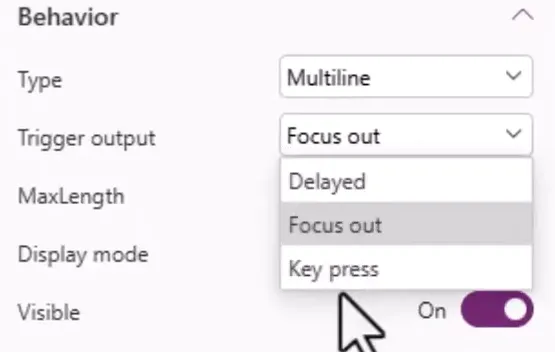
Choose Key press for immediate text-output updates.
With Focus out, the Text output updates after the user leaves the input. Delayed updates after a short delay. Key press updates the output on each keystroke, allowing the dependent counter formula to recalculate. Current modern inputs added to forms can default to Delayed, so check the actual setting rather than assuming it is Focus out.
This setting controls when the input exposes its text. It does not refresh the whole app or save a record on each keystroke. OnChange remains a separate event; current modern Text Input controls fire it when focus leaves the field. See Text Input behavior properties.
6. Check the counter and save the app
- Preview the app and type without leaving the field. Check that the count changes immediately.
- Delete text and confirm that the remaining count increases. Clear the field and confirm that it shows 400 characters remaining.
- Type to the limit. Confirm that the label reaches zero and that the input stops accepting additional typed characters. Try pasting text as well.
- Check existing values, including any longer than the new limit. A negative arithmetic result indicates that the measured value exceeds the counter’s limit; investigate the value and validation policy rather than hiding the mismatch.
- Trigger the field’s normal validation error and check its spacing. Test narrow widths and keyboard navigation.
- Test the existing form save and cancel actions, especially if you updated the input control or repaired its Update binding.
- Save the app, then publish the saved version when you want users to receive the change. See Microsoft’s save/publish requirement.
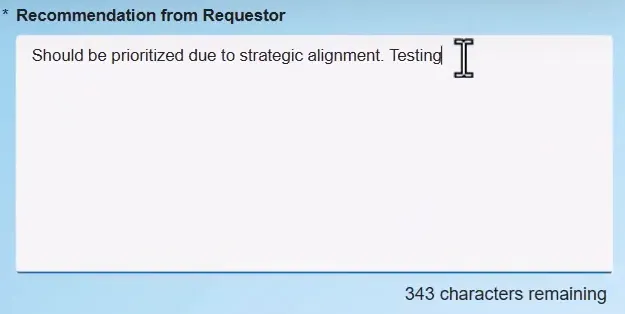
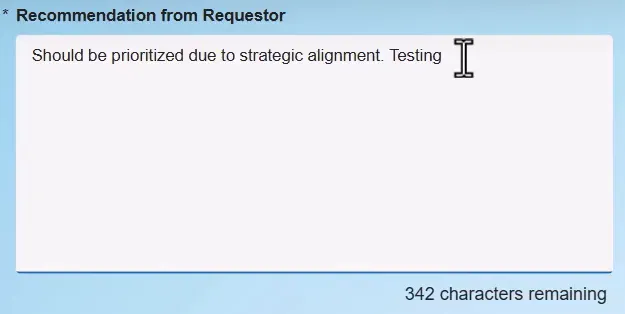
The count changes while the caret remains in the input.
Download the property formulas and application notes to adapt this setup to another field.
Performance and troubleshooting
Use live output where immediate feedback helps. On large forms, measure typing responsiveness on target devices before enabling Key press on every field. There is no guaranteed field-count threshold for this pattern. Expensive formulas that depend on the input can add work as its output changes; Microsoft’s performance troubleshooting recommends profiling the actual app.
- The count changes only after clicking away: Check Trigger output on the input and confirm it is Key press.
- The formula has a property error: Check the input’s real name and whether that version exposes Text or Value.
- The number is wrong: Confirm that the counter reads the intended input and uses the same limit as MaxLength. Count the input text rather than the saved card default.
- The message clips or overlaps an error: Adjust the label width, height, alignment, and card spacing, then check validation and narrow layouts again.
- Saving fails after a control update: Inspect the card’s Update formula and any other references to the changed control; the counter alone does not repair the form’s save path.
Companion video
Video: Power Apps Character Counter That Updates Live
If the player is blocked on your network, open the video on YouTube.
Need help applying this to your own setup? Read about consulting.