 Office Solutions Pro
Employee continuity plans in Teams and OneNote
Keep the knowledge a role needs where the next person can find it. Use a team's shared files for working documents and a OneNote notebook in Teams for each person's continuity plan, with a simple review cycle led by the manager.
When someone leaves a role, whoever replaces them needs to get up to speed quickly. Every week they spend working out what the job involves is lost productivity. A continuity plan, also called a turnover or transition plan, captures what the role involves: duties, contacts, reference material, ongoing work and how things are done.
This guide covers two parts:
- The process: who does what, and how the plan stays current.
- The tools: Teams files for working documents, and a OneNote notebook in Teams for the plans themselves.
1. Set up the process first
Tools only help if the process behind them works. Look at continuity planning from four angles. If any one is weak, the whole process tends to break down.
| Angle | For continuity planning |
|---|---|
| Roles | The manager and the employee |
| Processes | How the plan is written, reviewed and updated |
| Technologies | Where the plan and files live. Here, Teams, OneNote and SharePoint |
| Governance | The expectations, checks and naming that make sure it actually happens |
A cycle that keeps plans current:
- The manager defines the process: what goes in a plan, where it lives and when it’s reviewed.
- The employee keeps their plan up to date throughout their time in the role.
- The manager reviews it during performance reviews.
- The employee adds anything that was missing, such as a new duty.
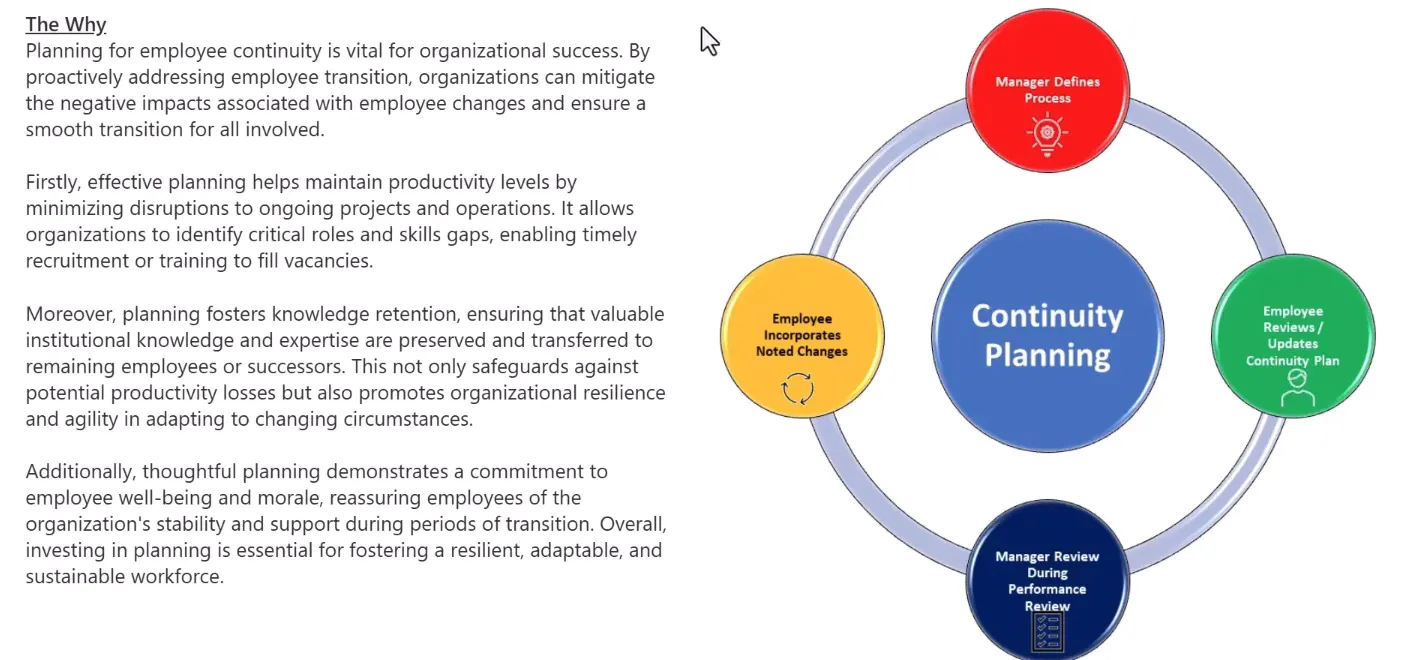
The manager has to lead it. Without the manager setting expectations and checking, continuity planning tends to start strong and then fade. People leave on short notice, through illness, retirement or a sudden move. A plan that’s kept current all along is the only kind that will be ready when it’s needed.
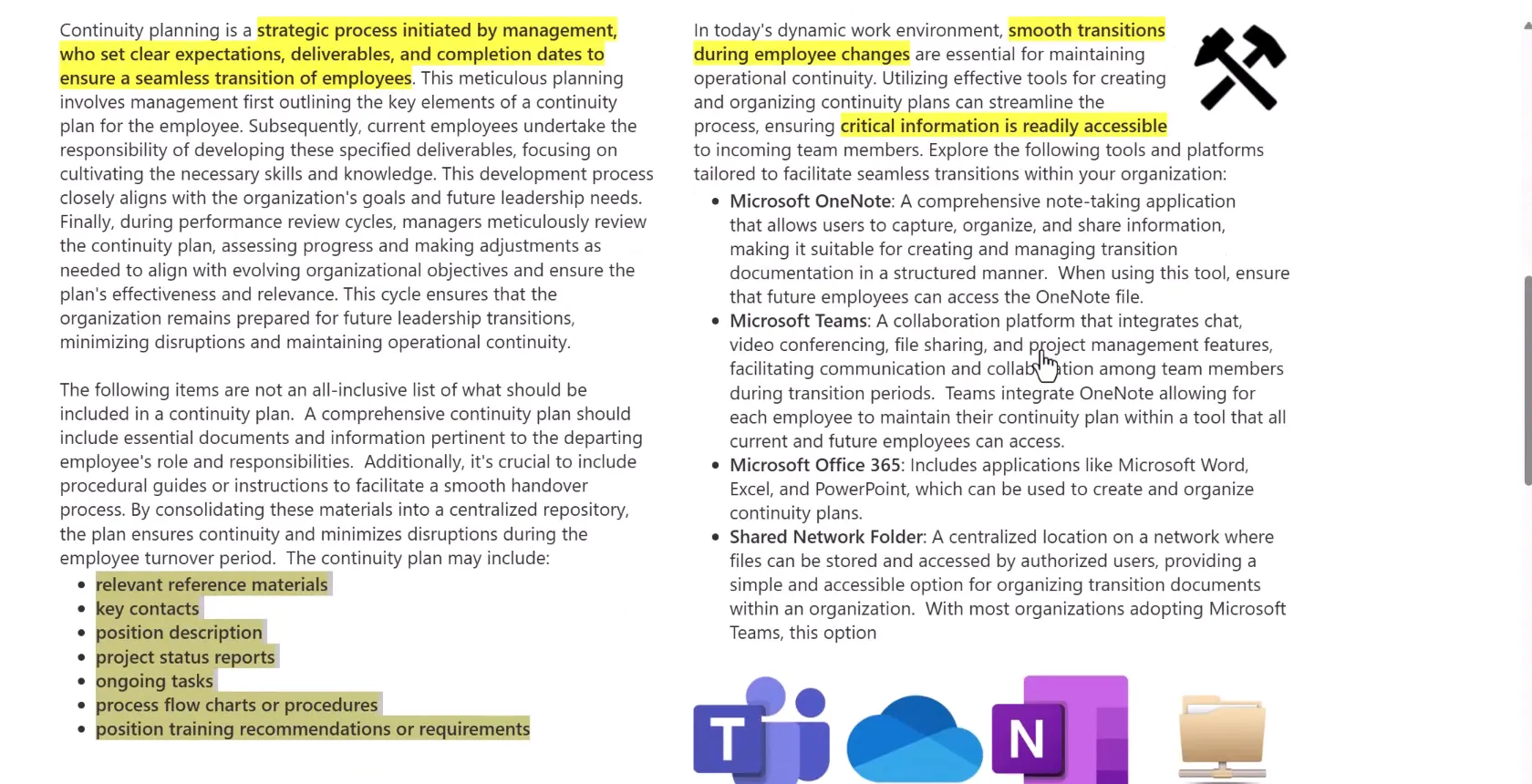
What a continuity plan should cover:
- Reference materials for the job
- Key contacts
- Position description and duties
- Recurring reports
- Ongoing tasks and their status
- Flowcharts or procedures
- Training the role needs
2. Keep working files where the team can reach them
Why not one big document, or a folder somewhere? A single transition document, or folders full of files, is hard for a newcomer to find and to take in. Everyone also names them differently, such as turnover, transition or continuity. If you use files, agree on one name and location across the organization.
Why not personal OneDrive? Files in someone’s OneDrive belong to that person’s account. When an account is deleted, Microsoft gives the user’s manager access by default, but only for a limited time, 30 days by default. After that, the OneDrive is deleted. Anything the next person needs should already be somewhere shared before the employee leaves.
Use the team’s files instead. A team’s Files tab is a SharePoint document library that belongs to the team’s Microsoft 365 group, not to any one person. Coworkers covering for someone on leave can open their files, and the files stay when the person leaves.
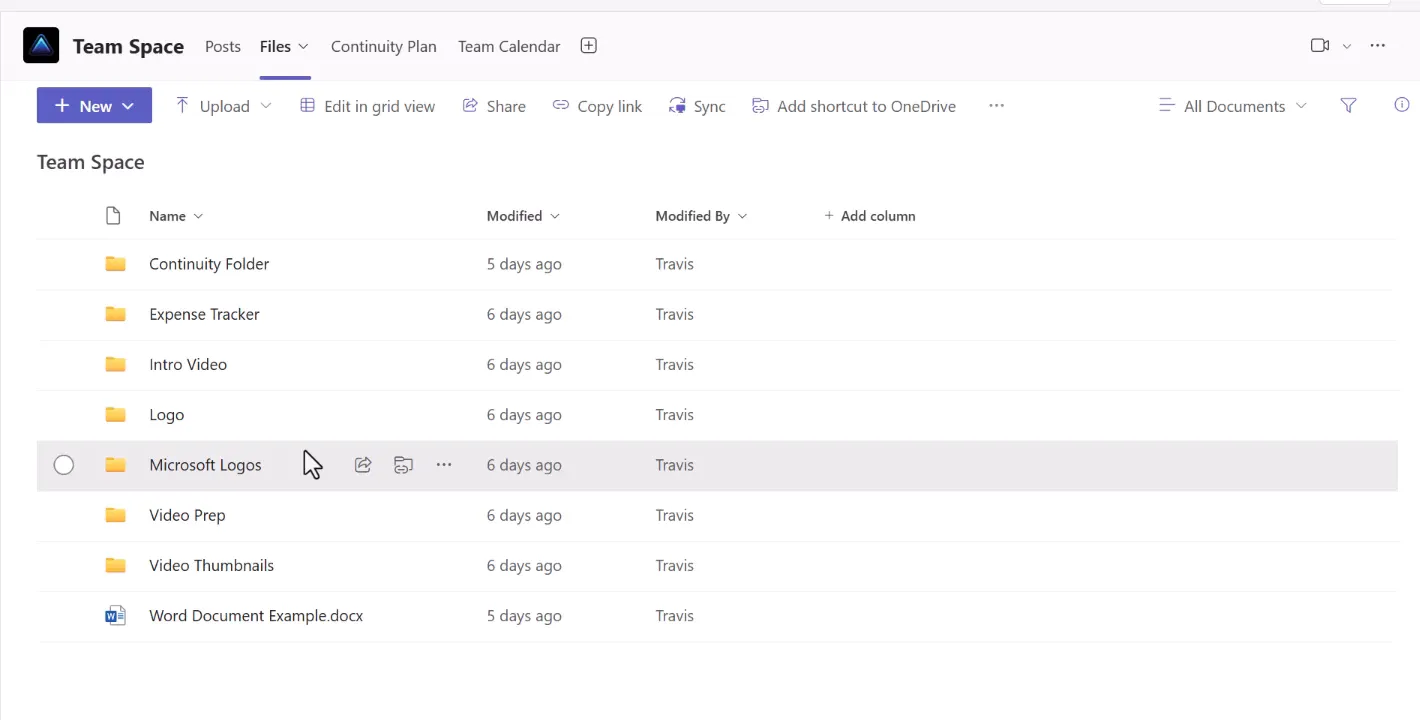
Keep teams small, around an office or a team of 8 to 15 people, so the files and notebook stay manageable.
Organize the files
Use numbered folders, so they stay in a fixed order, and folder colors to show who owns what. When you create a folder, you can choose its color in the Create a folder dialog.
- Select New > Folder. Name it
1 - Personnel Sandbox, pick a color and select Create.
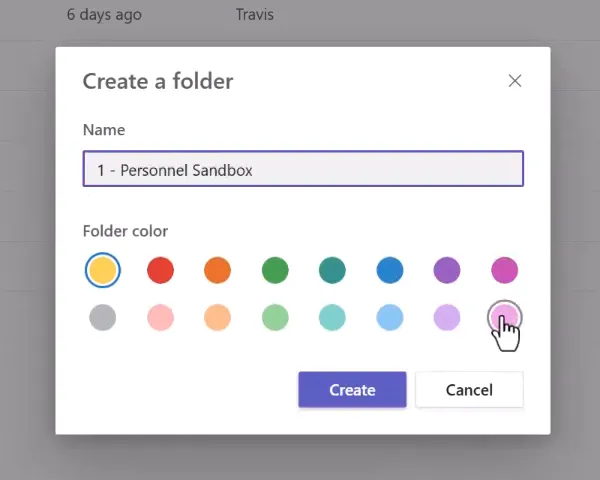
- Inside it, create a folder for each person, each in their own color. People keep their day-to-day working files here.
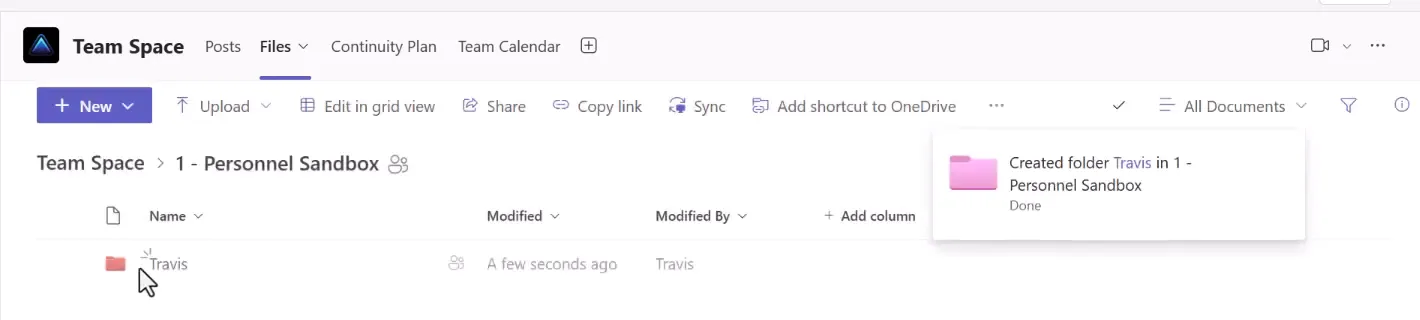
- For work several people share, such as a program or function, create a top-level folder like
2 - Power Apps Development. Give it the color of the person who leads it.
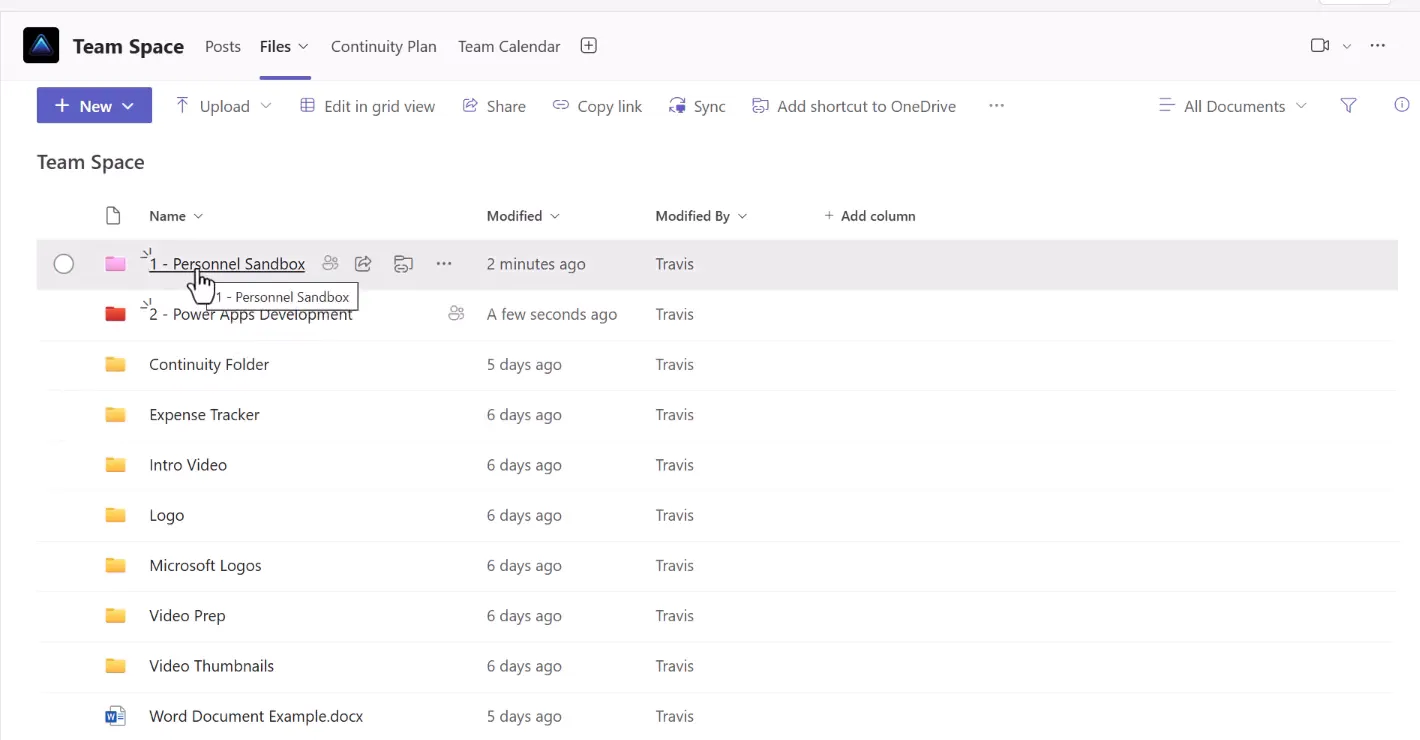
Use decimals such as 2.1 and 2.2 for related areas. With the colors, a manager can see at a glance which areas each person owns. That makes it easy to walk through them during a review.
Sensitive information. Some material, such as personal data, shouldn’t be open to the whole team. Store it according to your organization’s data policies, in a location with restricted permissions.
3. Keep each continuity plan in a OneNote notebook
The working files are raw material. The plan is the guide that tells the next person what matters. A OneNote notebook in the team keeps every plan in one predictable place, and it’s easy to read and update.
Add the notebook to the team
- In the channel, select Add a tab (+), choose OneNote, and either create a notebook or pick an existing one. Microsoft’s steps are in Add a OneNote notebook in Microsoft Teams.
- Rename the tab, for example Continuity Plan.
Everyone in the channel who has access to the notebook can view and edit it.
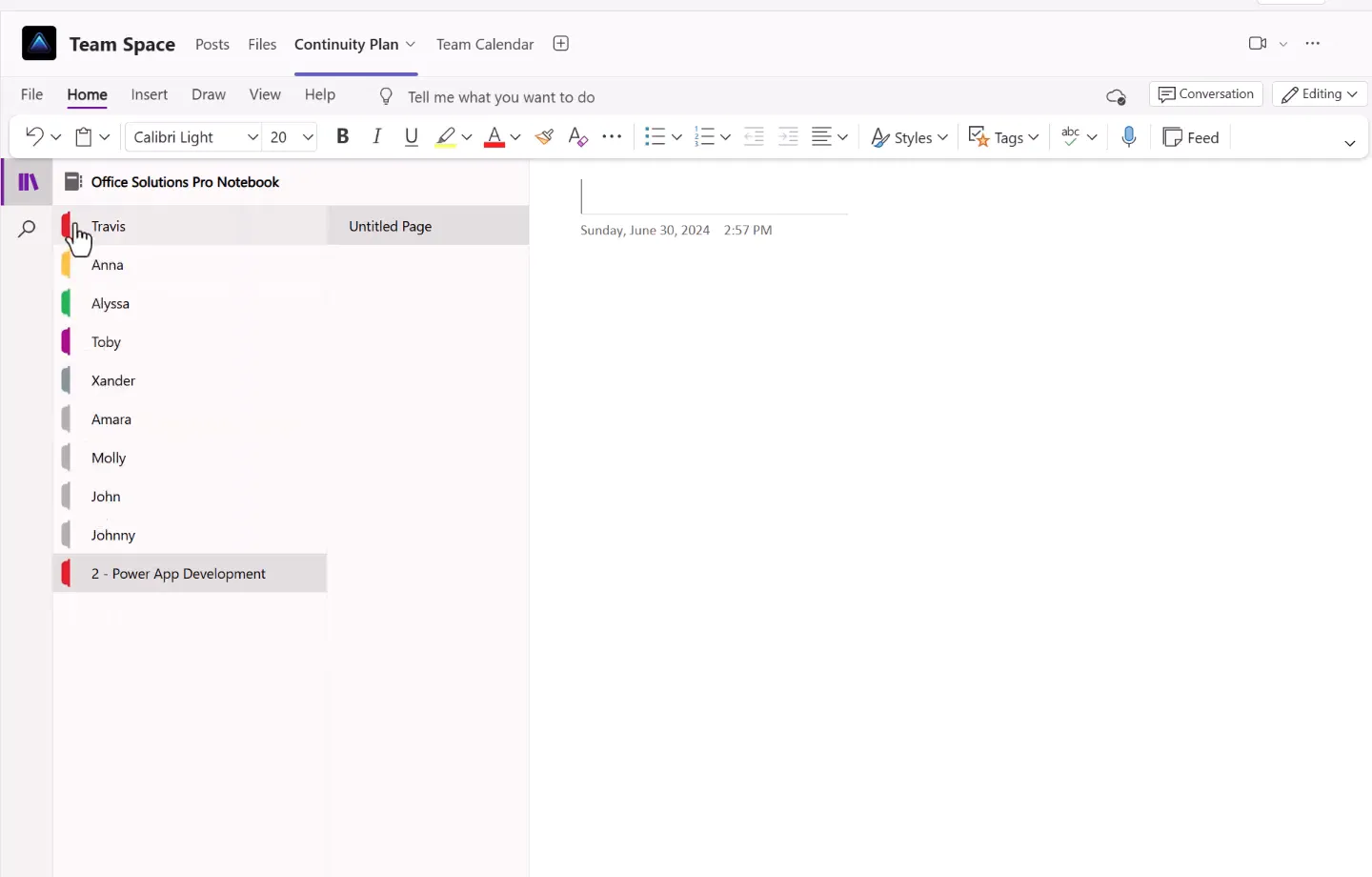
Give each person a section
- Create a section for each person, named after them, in the same color as their folder.
- Inside each section, add a page for each topic: duties, points of contact, reference material, recommended training, additional resources and the systems they look after.
- For larger topics, add subpages, for example how to update event images on a SharePoint site.
Pages can hold text, screenshots, images and videos, so step-by-step instructions are easy to show.
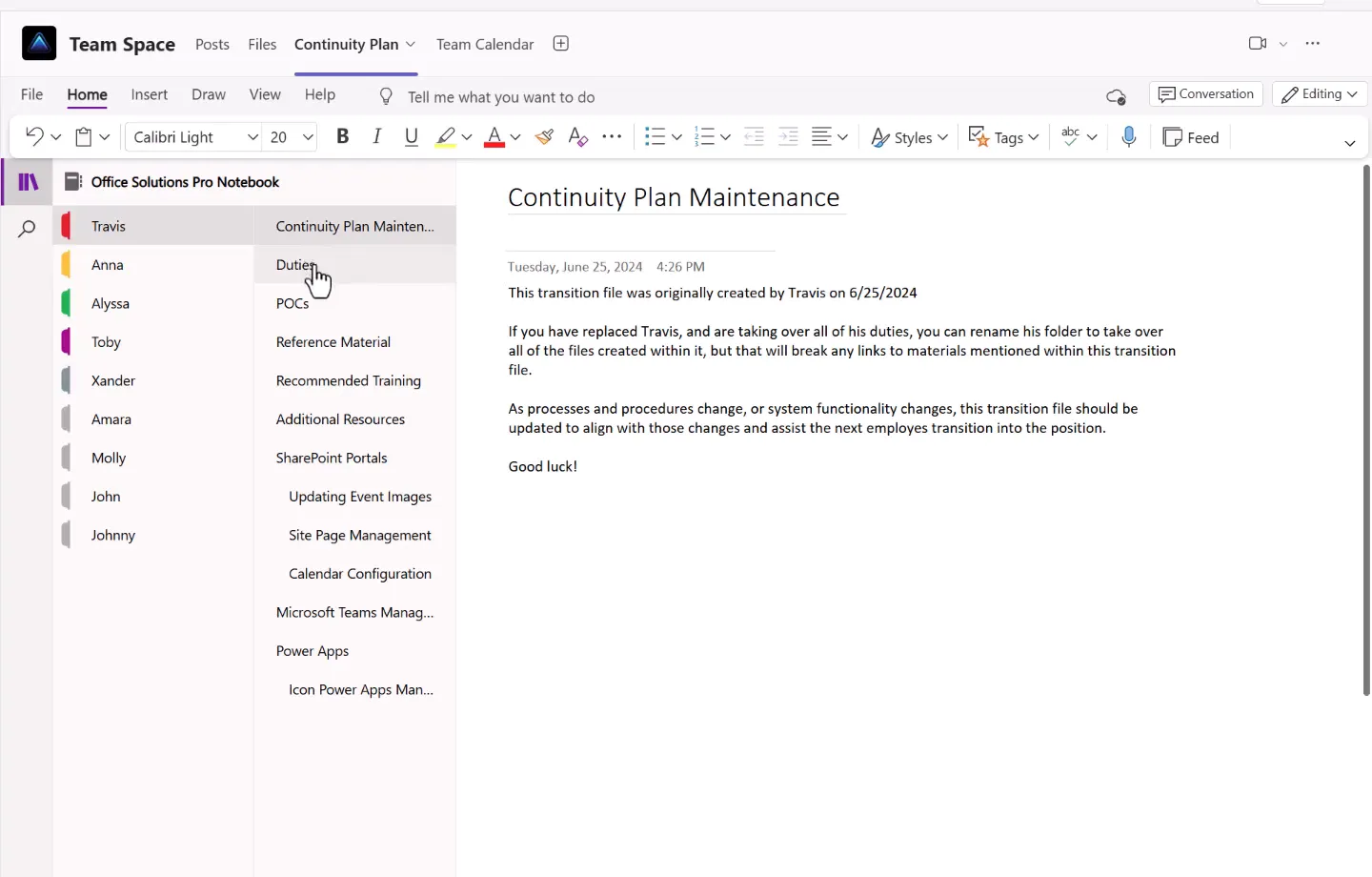
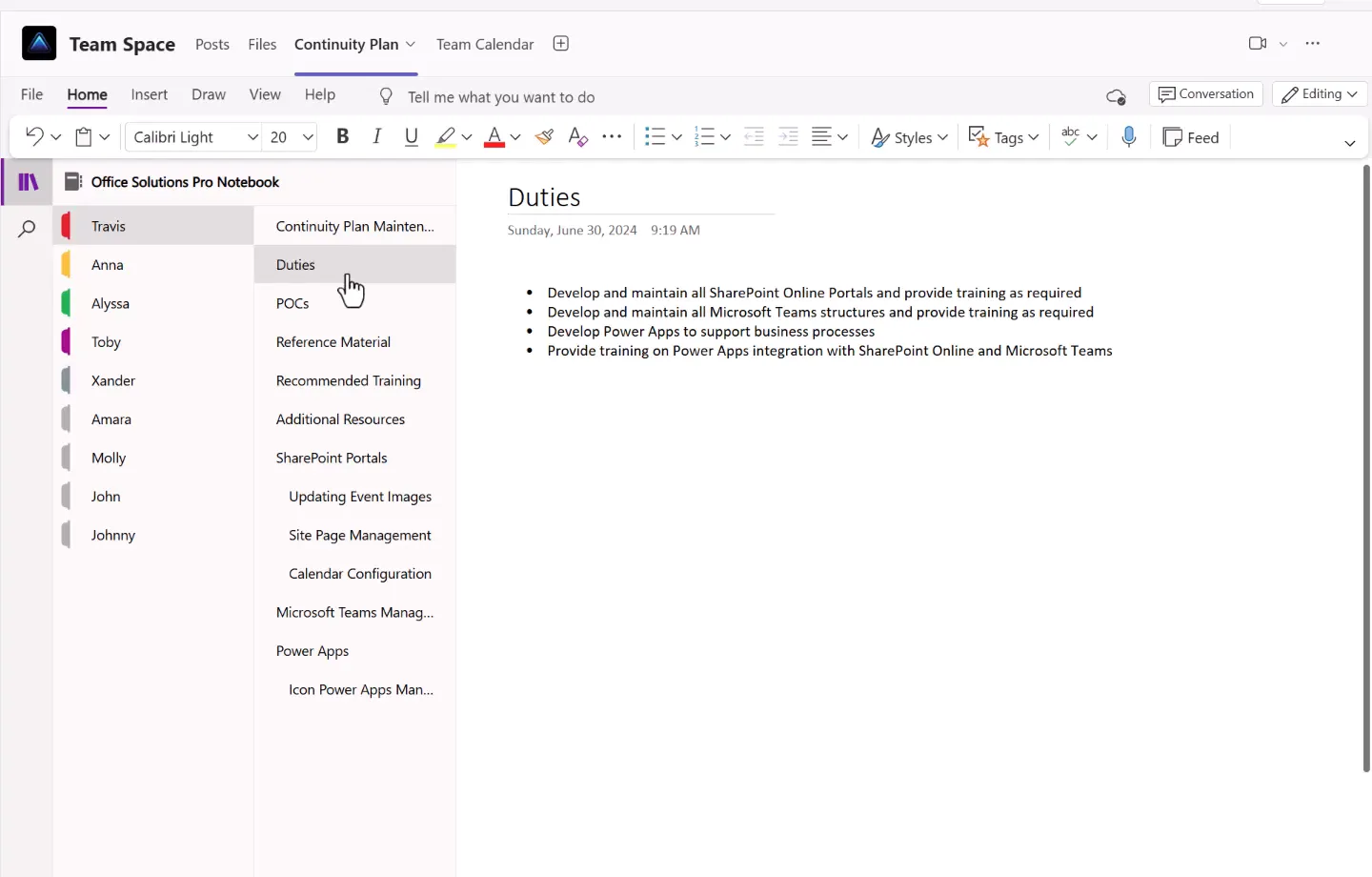
Start each plan with a maintenance page. It says who wrote the plan and when, and what the next person should do with it. For example, they might rename the section to their own name, or update the plan as procedures change.
Watch out for links. If the next person renames or moves the previous person’s folder, links in the plan to files in that folder can break.
Add sections for shared programs
Create sections for shared programs too, matching the program folders, such as 2 - Power App Development. Everyone working on that program can find its procedures and guidance in one place.
4. Use it during reviews and handovers
- Reviews: At each performance review, or a midyear check-in, the manager and employee open the employee’s section together. They check that duties, contacts and procedures are current, for example removing a contact who has left.
- Handovers: When someone new starts, the manager shows them the notebook. They open the previous person’s section, walk through the duties and contacts, and point to the working files.
Left to themselves, employees rarely update a plan, because it doesn’t help with today’s work. It pays off when they leave, so the manager is the one who needs to keep it on track.
Troubleshooting
| Symptom | Likely cause | What to do |
|---|---|---|
| A newcomer can’t find the transition file | Names and locations vary | Keep plans in the team’s notebook, with one agreed name |
| A departed employee’s files are gone | They were in the person’s OneDrive, which was deleted after the retention period | Keep work files in the team’s Files |
| Links in a plan stopped working | The linked folder was renamed or moved | Update the links when you rename folders |
| The notebook is too busy | The team is too large | Use smaller teams, or one notebook per office |
| Plans are out of date | No one checks them | Review them at every performance review |
| Some content shouldn’t be shared with the team | It’s sensitive | Store it in a restricted location per your data policy |
Companion video
Video: Effective Knowledge Management for Employee Transition/Turnover Using Microsoft Teams, OneNote, and OneDrive
If the player is blocked on your network, open the video on YouTube.
Need help applying this to your own setup? Read about consulting.